
Team, user roles and permissions
Invite your colleagues and give each the role they need. On the Scale plan, create roles of your own and group people into teams that work in their own collections and folders.
Published
A museum's catalogue is everyone's work, but not everyone should be able to change everything. A volunteer checks records, a conservator writes condition reports, the registrar looks after the settings of the collections. Collectionframe gives each colleague their own account and a role that says what they may do, and, on the Scale plan, teams that say where they work.
Invite your colleagues
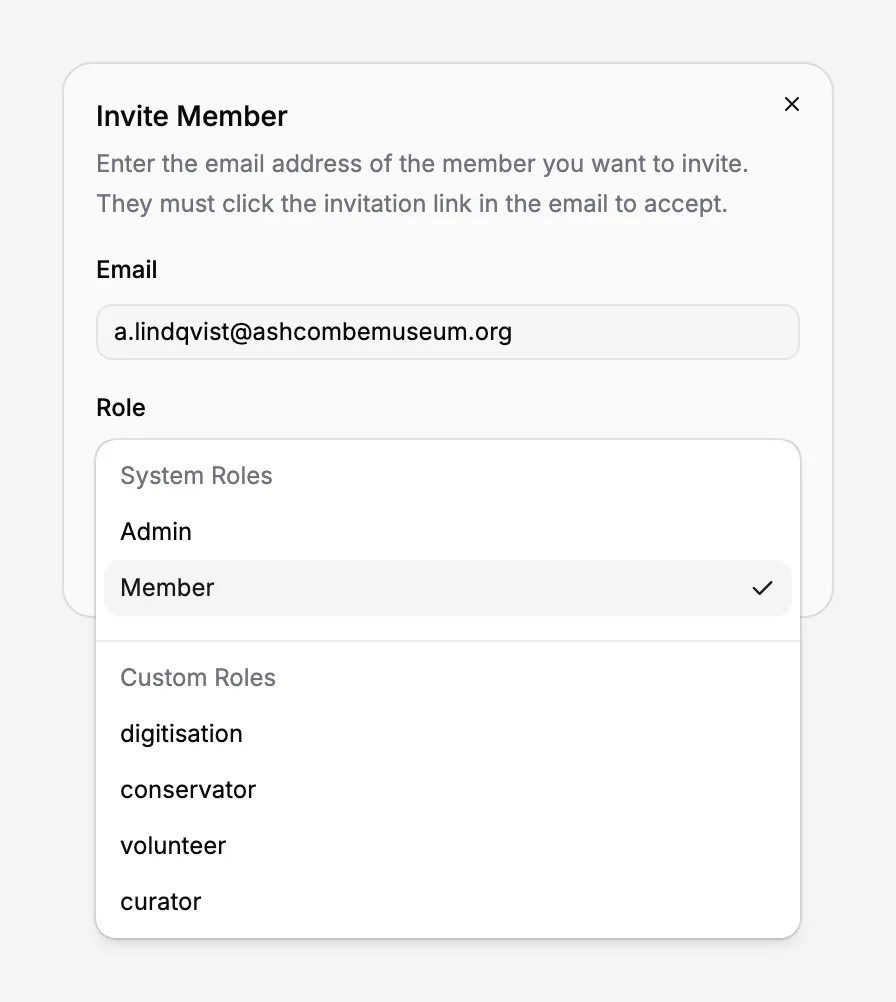
Type a colleague's e-mail address and choose their role. The invitation names your museum and the person who sent it. Your colleague signs in with a code sent to that address, types the name the team will see and joins in one click, without creating a museum of their own. Active members and pending invitations are in one list: resend an invitation that was missed, or cancel one that is no longer needed.
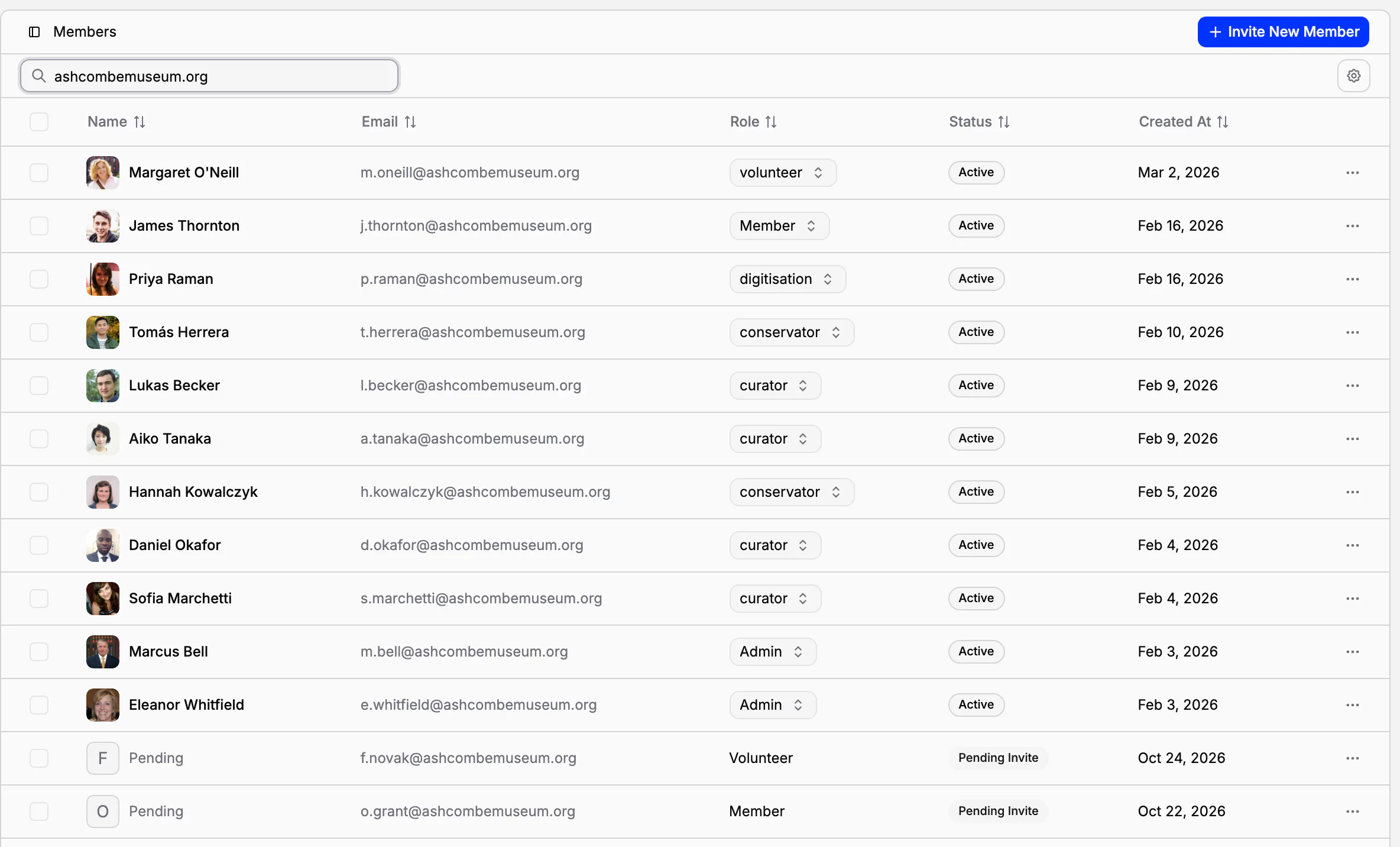
You can also invite colleagues while setting up the museum and from Getting started on Home. The Pro plan includes up to 5 people and the Scale plan up to 15, pending invitations included.
Three roles to start with
Every museum starts with three roles with fixed rights:
Owner: the person ultimately responsible for the museum;
Admin: day-to-day management of the museum;
Member: regular work in the catalogue and the documents.
The owner cannot be removed or demoted by mistake. Owners can change a member's role at any time, or remove people who no longer need access.
Roles of your own
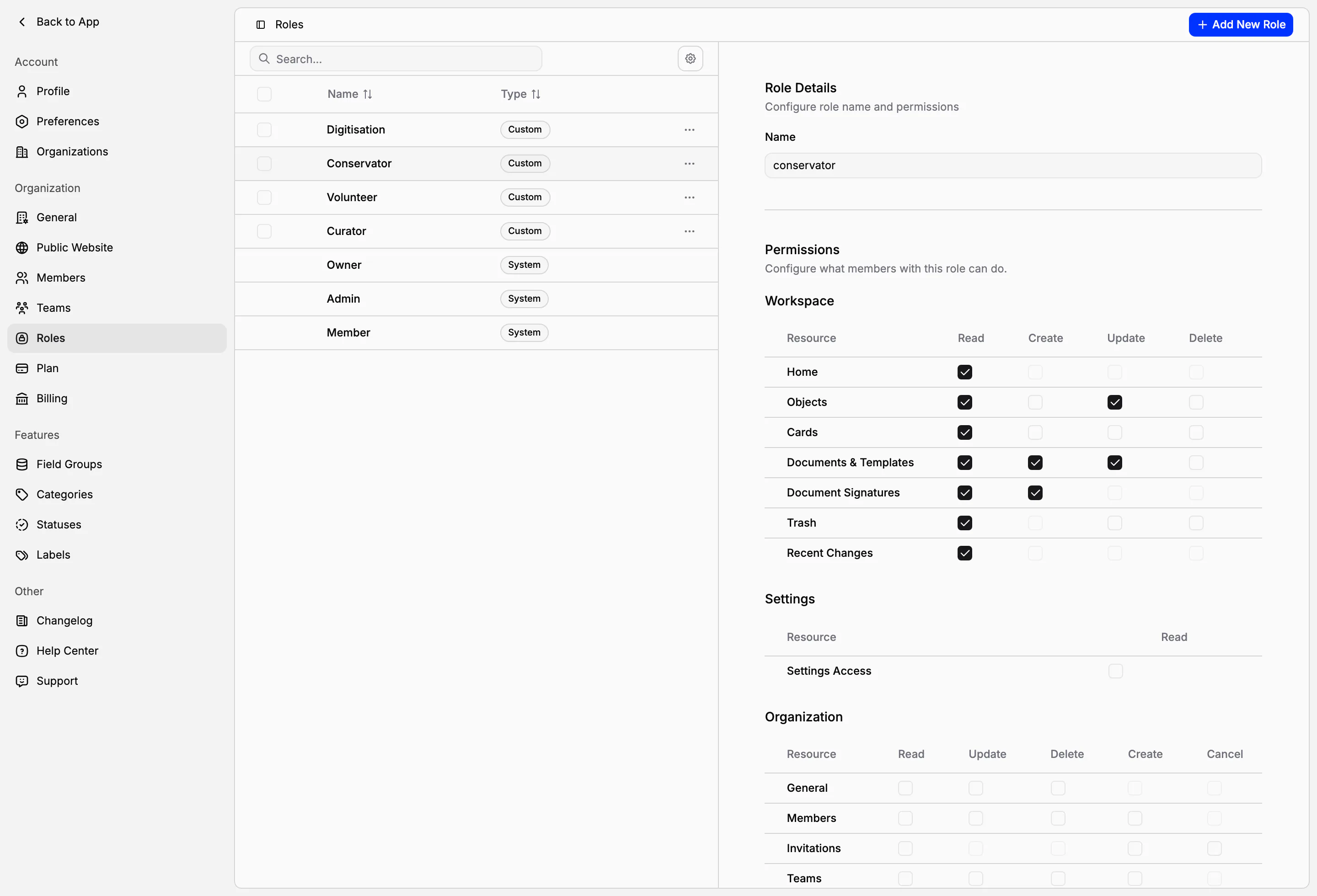
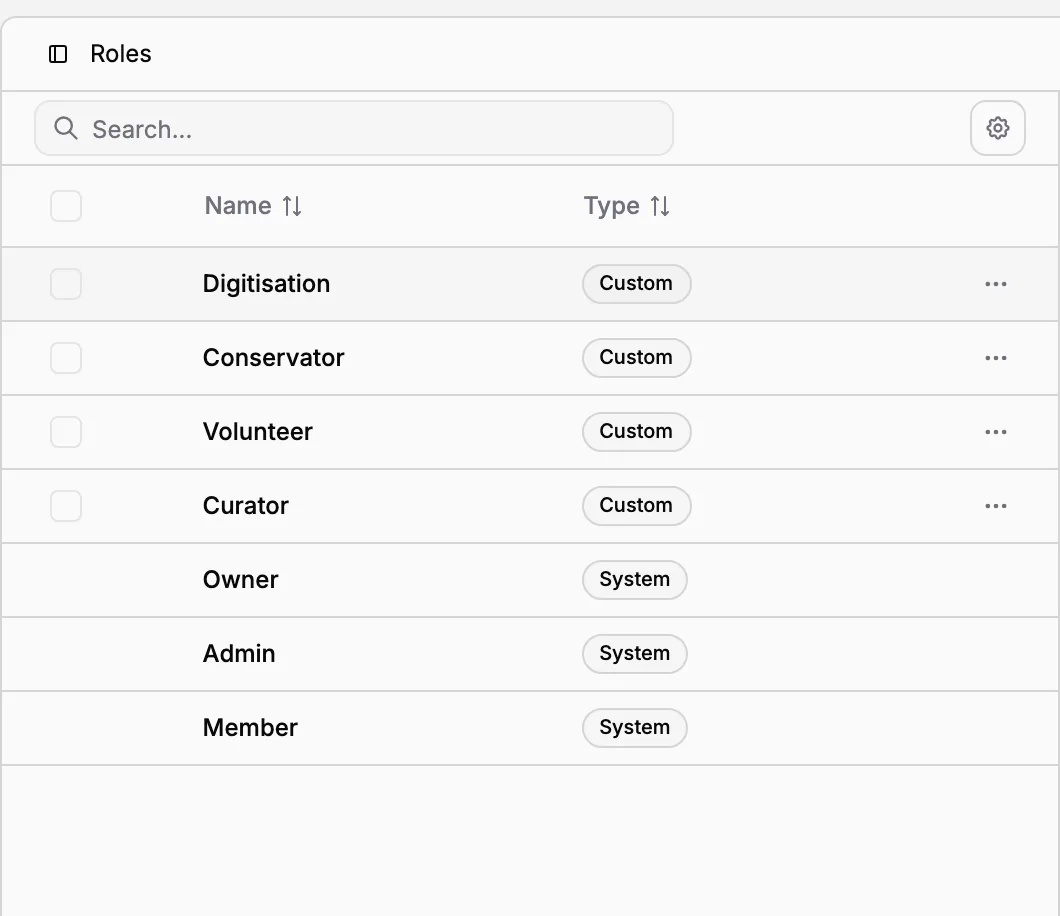
On the Scale plan, create roles for the way your museum works: a registrar, a conservator, a digitisation assistant, a volunteer who only reads. Name the role and choose, area by area, what it may read, create, update and delete:
the workspace: Home, objects, cards, documents and templates, document signatures (with separate rights to sign and to void), the trash and Recent Changes;
the settings: whether the role may open them at all;
the organization: general settings, members, invitations, teams, roles, and the plan and billing;
the museum's structure: folders, collections, field groups, categories, statuses and labels.
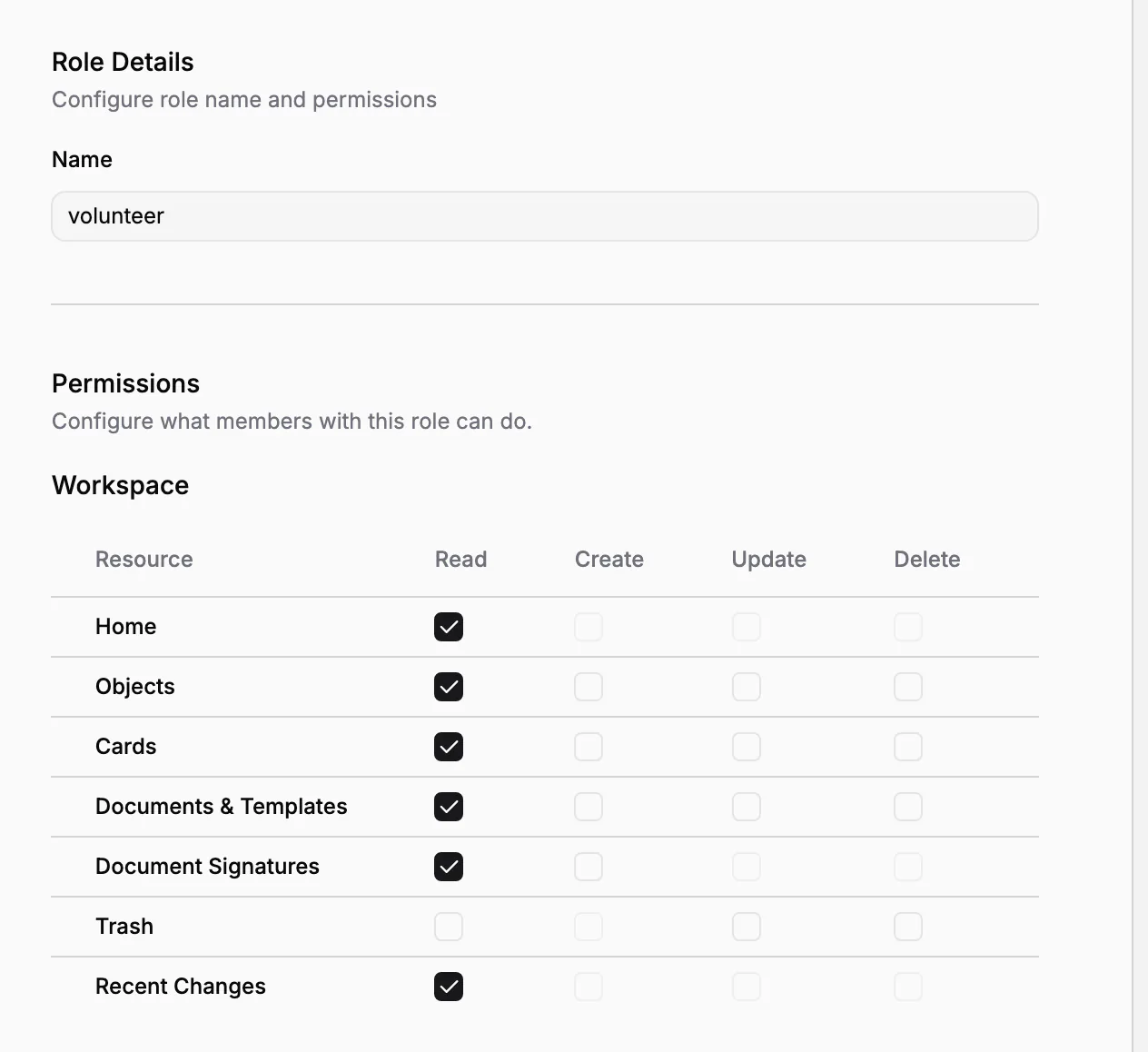
A custom role appears in the role list of every invitation and every member, next to Admin and Member. Change what a role may do, and everyone who has it works with the new rights; there is no need to edit people one by one.
Teams: who works where
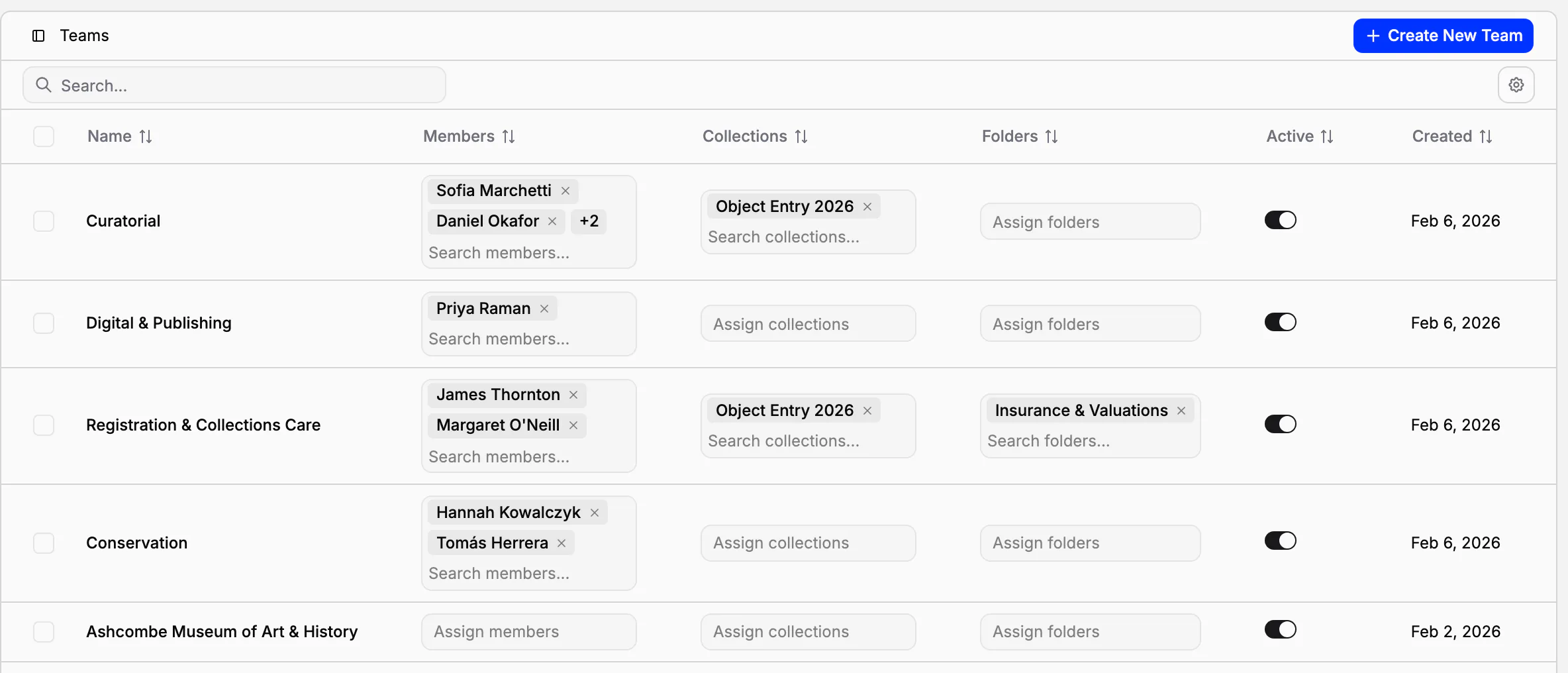
Roles say what someone may do; teams say where. On the Scale plan, group people into teams, for a department, a project or an exhibition, and give each team its collections and folders of documents. Its members work there, while owners and admins keep access to everything. A team can be made inactive for a while without being taken apart.
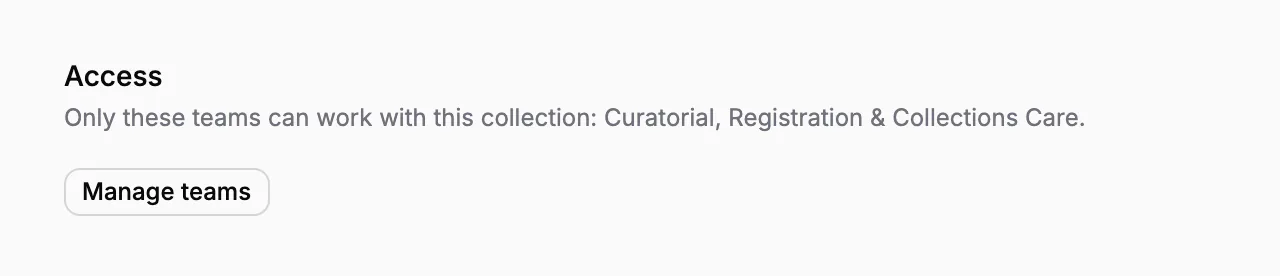
A registration team, for example, can work with the collection of objects that came in this year and with the insurance and valuation folder, while the curators see the collections they are responsible for. The two work side by side and do not get in each other's way.
A collection's settings show which teams may work with it, and a folder can belong to a team in the same way. When a team is deleted, its collections, folders and invitations are released, ready to be given to another team.
Several museums, one account
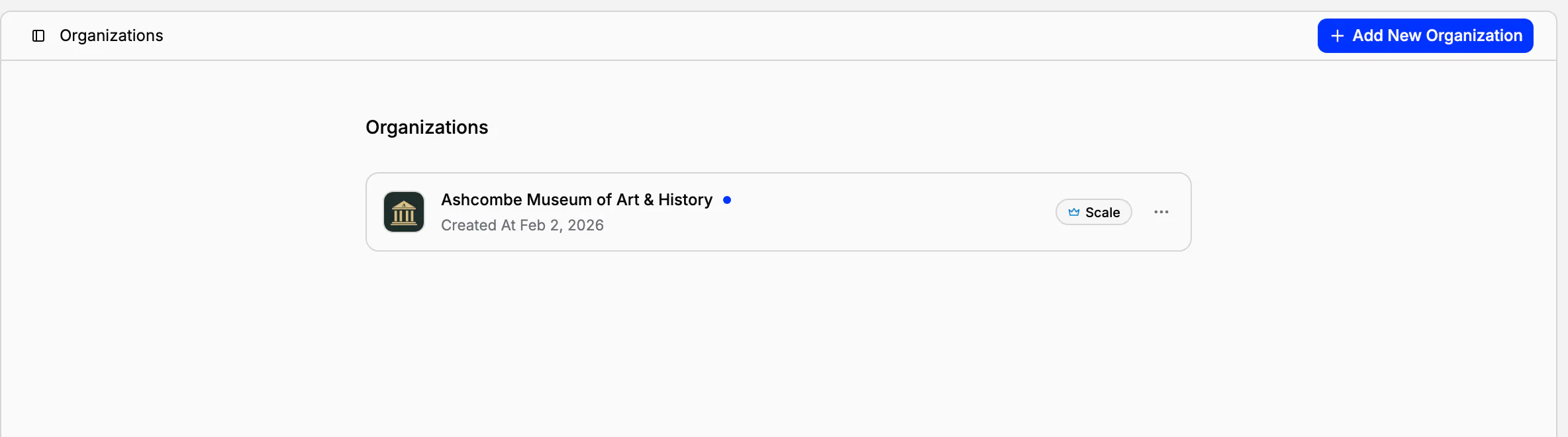
One account can work in up to five organizations, for example a museum and the foundation that runs it, and switch between them from the museum's name at the top of the sidebar. Each keeps its own records, people, settings and plan apart; your name, picture, language and theme follow you from one to the other. Leave an organization you no longer work with. An owner can delete one, except while it has an active paid subscription and except the last one they own.
In practice
The conservation department gets its own team, Conservation, with the conservation folder and the collections it looks after. Its two conservators have the custom role Conservator: they may update objects, write condition reports and sign them, but they cannot open the settings. A volunteer who checks records against the old paper register gets the Volunteer role, which can read everything and change nothing.
Frequently asked questions
How many people can we invite?
Up to 5 people on the Pro plan and up to 15 on the Scale plan, counting active members and pending invitations together.
Can a volunteer have read-only access?
Yes, on the Scale plan: create a role that may only read, and give it to the volunteer. On the Pro plan you work with the three built-in roles: Owner, Admin and Member.
Can a department see only its own collections?
Yes, on the Scale plan. Put its people in a team and give the team its collections and folders. They work there, while owners and admins keep access to everything.
Does an invited colleague need to create their own museum?
No. They sign in with a code sent to the invited address, type the name the team will see and join your museum. No museum of their own is created.
Can one person work for two museums?
Yes. One account can belong to up to five organizations and switch between them. Each keeps its records, people, settings and plan apart.
Related features
Collection dashboard: today's work and documentation progress
See what needs you today, how far the documentation of each collection has come, and what changed and who changed it. Every number opens the objects or documents behind it.
Getting started: your museum set up in a few minutes
From your e-mail address to a printed inventory card in a few minutes. Three short steps set up the museum, with collections, fields, a card and templates ready in your language, and 21 days of Scale free.
Museum documentation: loan agreements, receipts and condition reports
Receipts, loan agreements, condition reports and movement records, linked to the objects they concern. Object data comes from the catalogue, every other value is typed once, and every object keeps its own paper trail.