
Inventory cards and museum labels
Design an inventory card, an exhibition label or a storage tag once; every object fills it with its own, current data. Print one, or a whole collection, as PDF, PNG or JPG.
Published
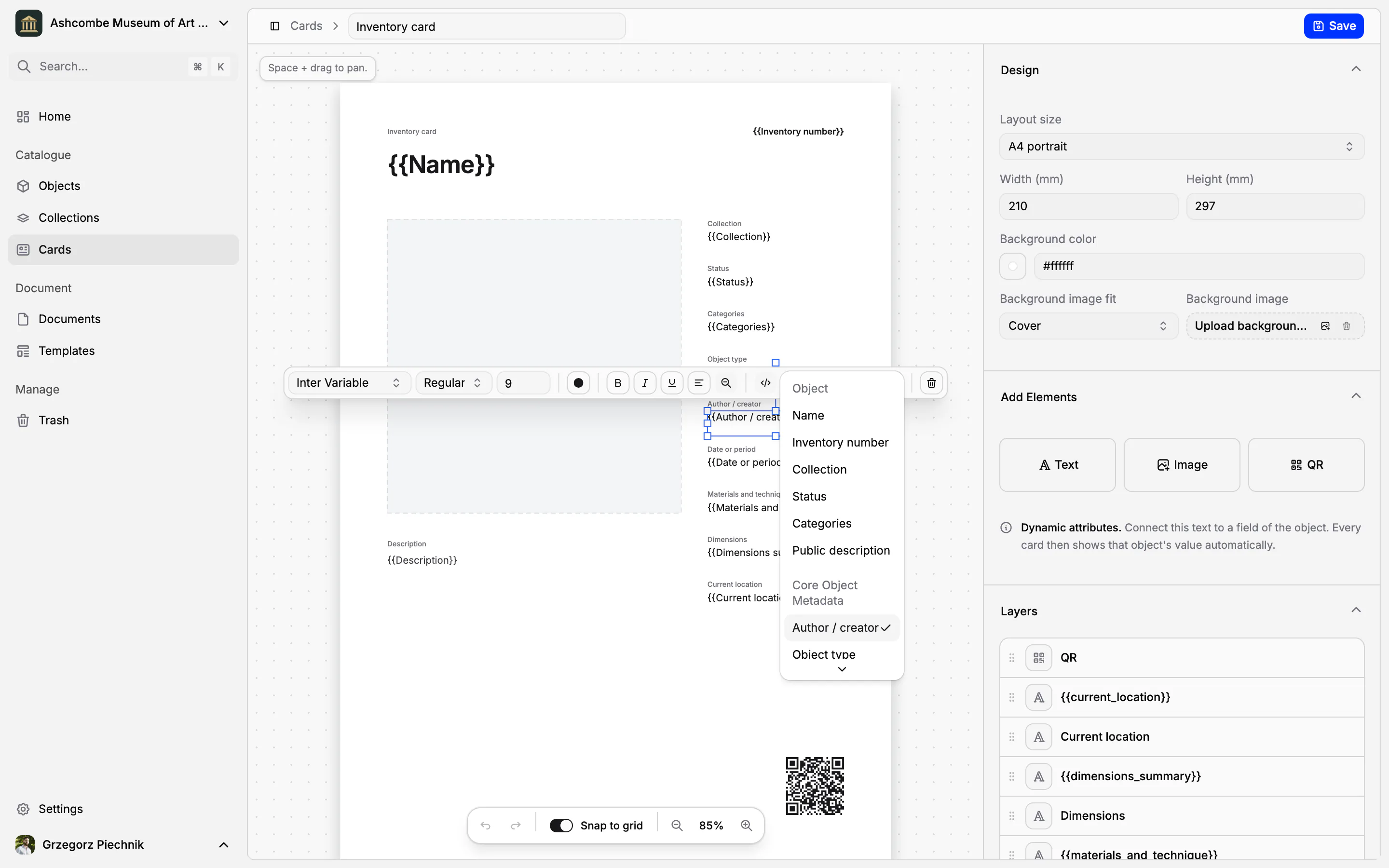
Copying an object's name, number and dimensions onto an inventory card, then onto a wall label, then onto a storage tag is slow, and every copy is a new chance for a mistake. In Collectionframe a card is a layout, not a copy. You design an inventory card, an exhibition label or a storage tag once, and every object fills it with its own data from the catalogue, as it is today.
An inventory card, ready in your language
Every museum starts with an inventory card. The object's name and inventory number are at the top, the main image and description on one side. On the other side are the collection, status, categories, object type, author or maker, date, materials and technique, dimensions and current location, and in the corner a QR code that opens the record.

The captions are in your museum's language, and the card uses only fields that every collection has, so it prints complete from the very first object. Use it as it is, or change anything about it.
Design your own cards and labels
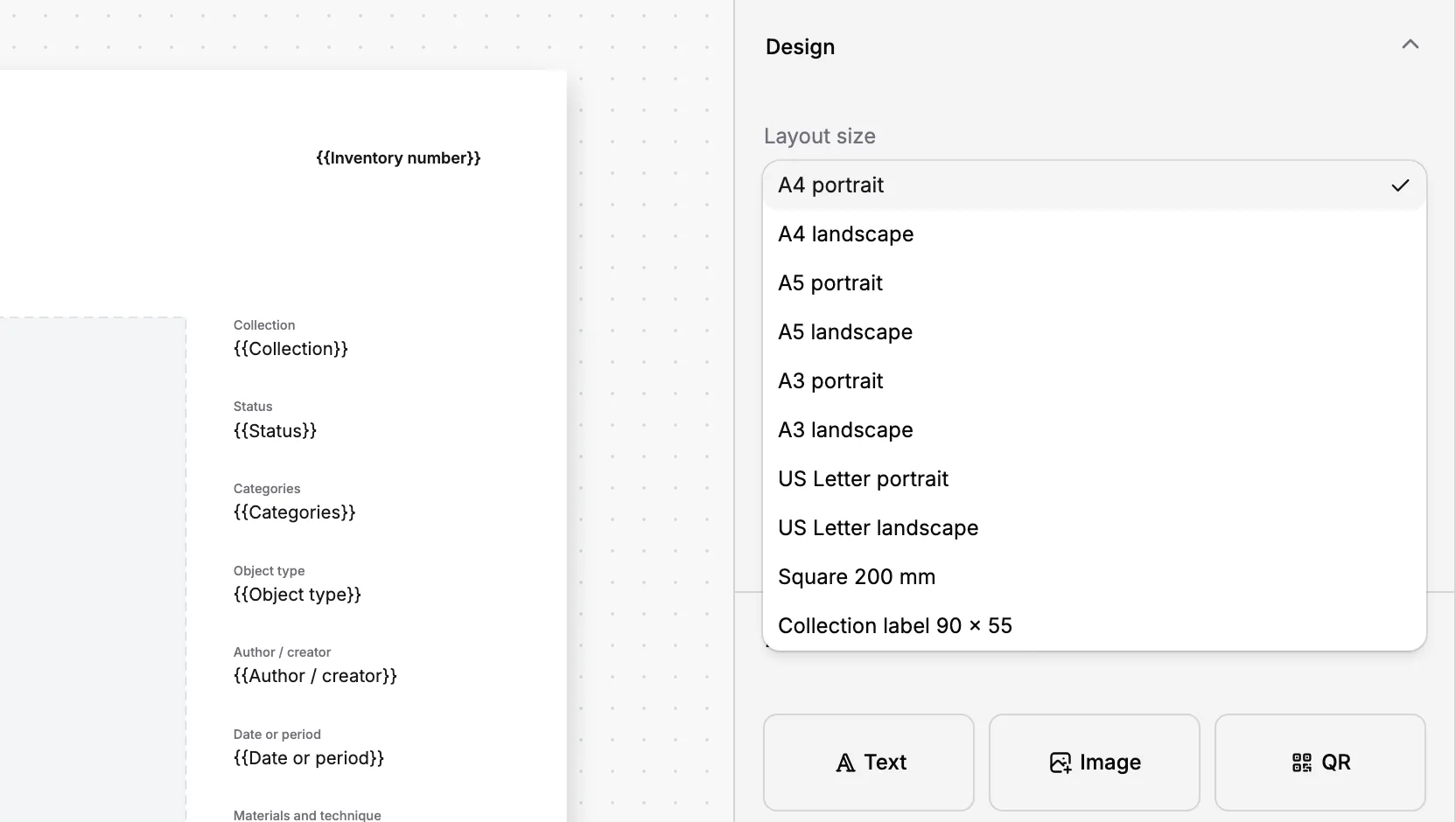
The card editor is where you draw your own layouts. Choose A3, A4 or A5 in portrait or landscape, US Letter, a 200 mm square or a 90 × 55 mm collection label, or type a size of your own in millimetres. Add text, images and QR codes, and a background image: a scan of your old paper form works well.
Instead of typing a value, pick a field: the object's name, inventory number, collection, status, categories, main image, public description, or any field of your field groups. The canvas shows the field's name, such as {{Author / creator}}, and the preview on each object shows its real value. A new card starts from the inventory card's layout, so you change what you need rather than starting from a blank page.
Text has its font, weight, size, colour and alignment, and can shrink to fit a long title. Every element sits on its own layer, which you can reorder, hide or lock, and a grid helps you line things up. Nothing changes until you save.
A card never stores data
A card holds no values of its own. Change a date on the record and every card of that object shows the new date. Change the layout and every object that uses the card follows. There is nothing to retype and nothing to keep in step, and cards can never disagree with the catalogue.
One card per collection, or per object
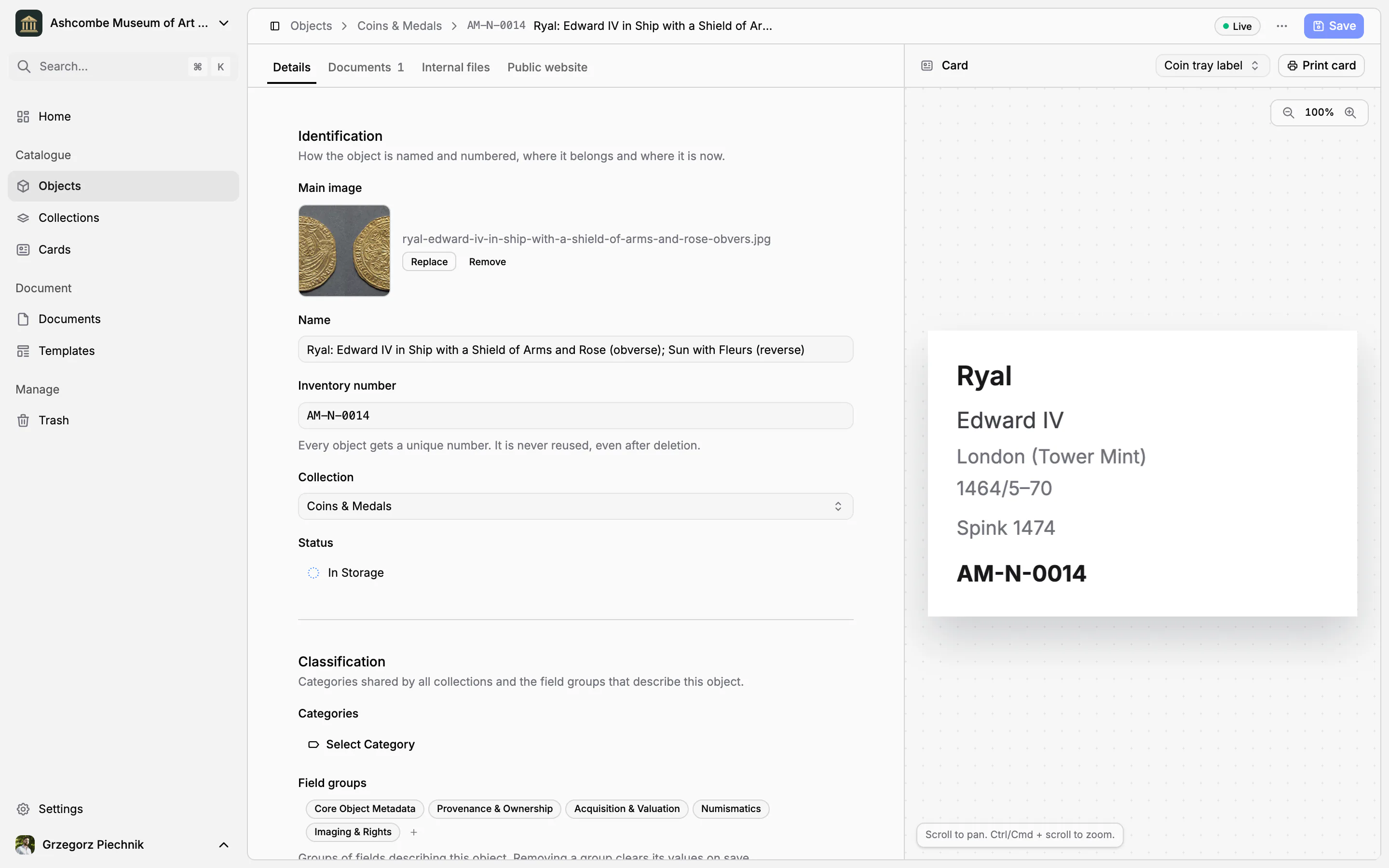
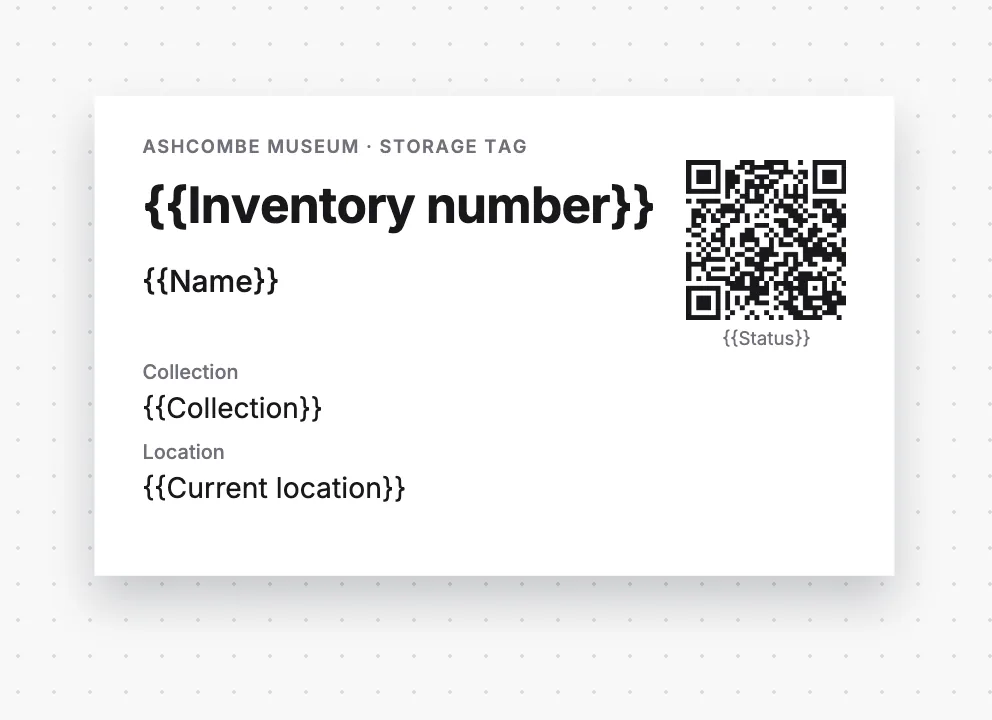
Each collection has a default card, so new objects print correctly from the first day. An object can use a card of its own when it needs one: a coin tray label for coins, or a larger label for the highlight of an exhibition.
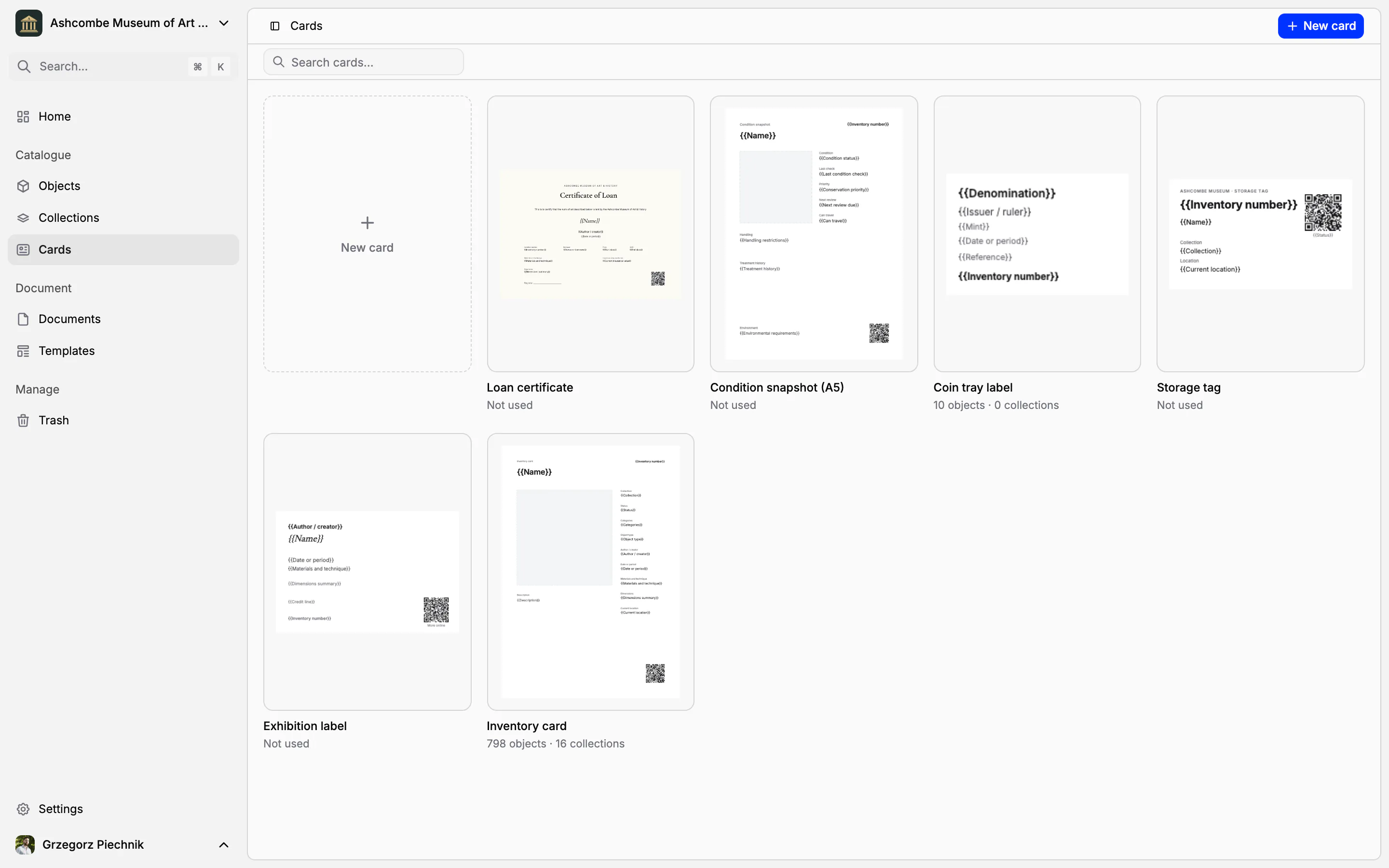
The card library shows how many collections and objects use each card, and the number of objects opens them in the object list. Deleting a card that is still in use asks which card should replace it, and leaves the objects' data untouched.
Print one card or a whole collection
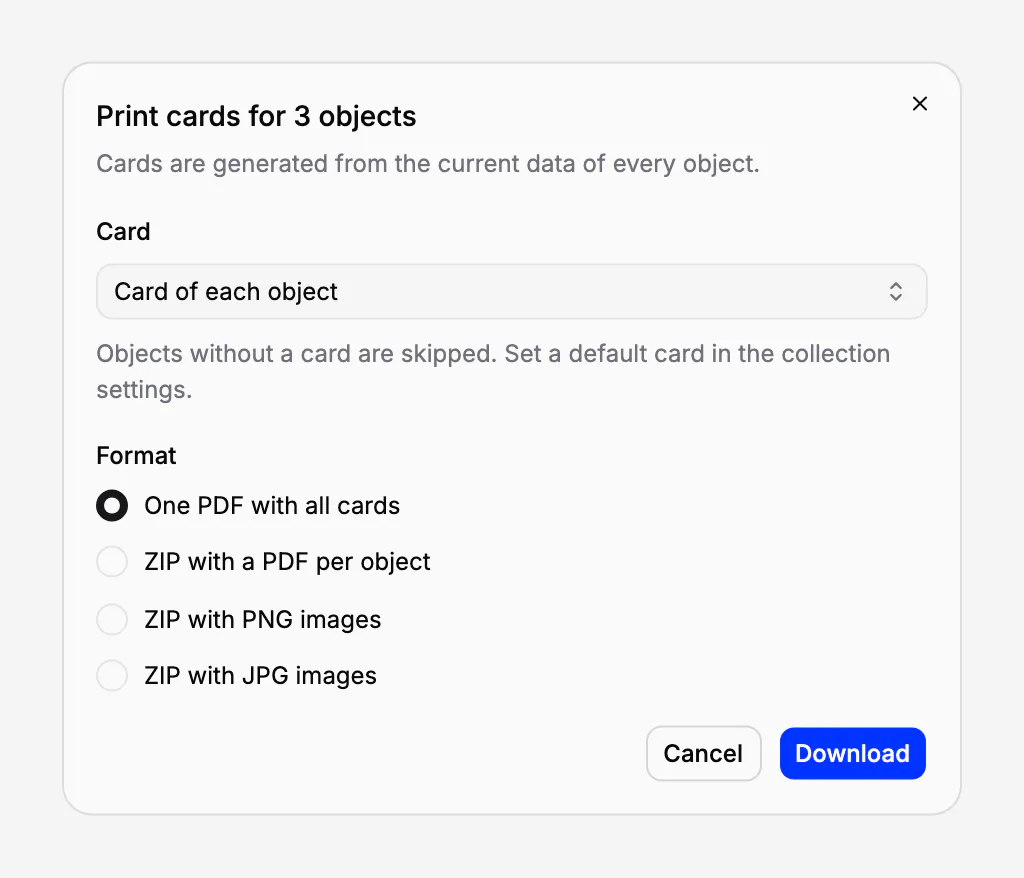
Print a single object from its page. From the object list, print a selection, a filtered list or a whole collection at once: one PDF with all the cards, or a ZIP with a PDF, PNG or JPG file for each object. Use each object's own card, or one card for all of them, such as the exhibition label. Cards are always generated from the current data.
QR codes that lead somewhere useful
Each card draws its QR code from the object it is printed for, so every tag leads to its own object. The code can carry the link to the object's record, so a colleague in the store scans a tag and opens the object in Collectionframe. It can also lead to the object's page on your museum's public website, so the label on the wall opens the object for a visitor.
In practice
A temporary exhibition opens next week, and 38 objects need wall labels. Filter Objects by the status Temporary exhibition, select the objects and choose Print. Pick the museum's 90 × 55 mm exhibition label as the card for all of them and download one PDF. If a date is corrected on the record the day before the opening, printing again gives a corrected label.
Frequently asked questions
Do I type the object's data onto the card?
No. A card only says where each field goes; the values come from the object's record. Correct the record and the card is corrected too, on every object that uses it.
Can we keep our own card layout?
Yes. Rebuild it in the editor, or upload a scan of your paper form as the background and place the fields on top of it. Any size from A3 down to a 90 × 55 mm label, or your own size in millimetres.
Which formats can I print?
One PDF with all the cards, or a ZIP with a PDF, a PNG or a JPG file for each object. You choose each object's own card or one card for all of them.
Can a QR code open the object's page online?
Yes. A QR code on a card can lead to the object's record in Collectionframe, for your staff, or to its page on your museum's public website, for visitors.
Related features
Cataloguing museum objects
One record per object: inventory number, images, fields that fit your collection, categories and status. Find any object in seconds, work on many at once, and take back mistakes from the trash.
Collections and inventory numbers
Departments and inventory books, each with its own numbering, fields, card and curator. Numbers are given in order, never repeated, and the register exports to a spreadsheet.
Museum documentation: loan agreements, receipts and condition reports
Receipts, loan agreements, condition reports and movement records, linked to the objects they concern. Object data comes from the catalogue, every other value is typed once, and every object keeps its own paper trail.