
Collection dashboard: today's work and documentation progress
See what needs you today, how far the documentation of each collection has come, and what changed and who changed it. Every number opens the objects or documents behind it.
Published
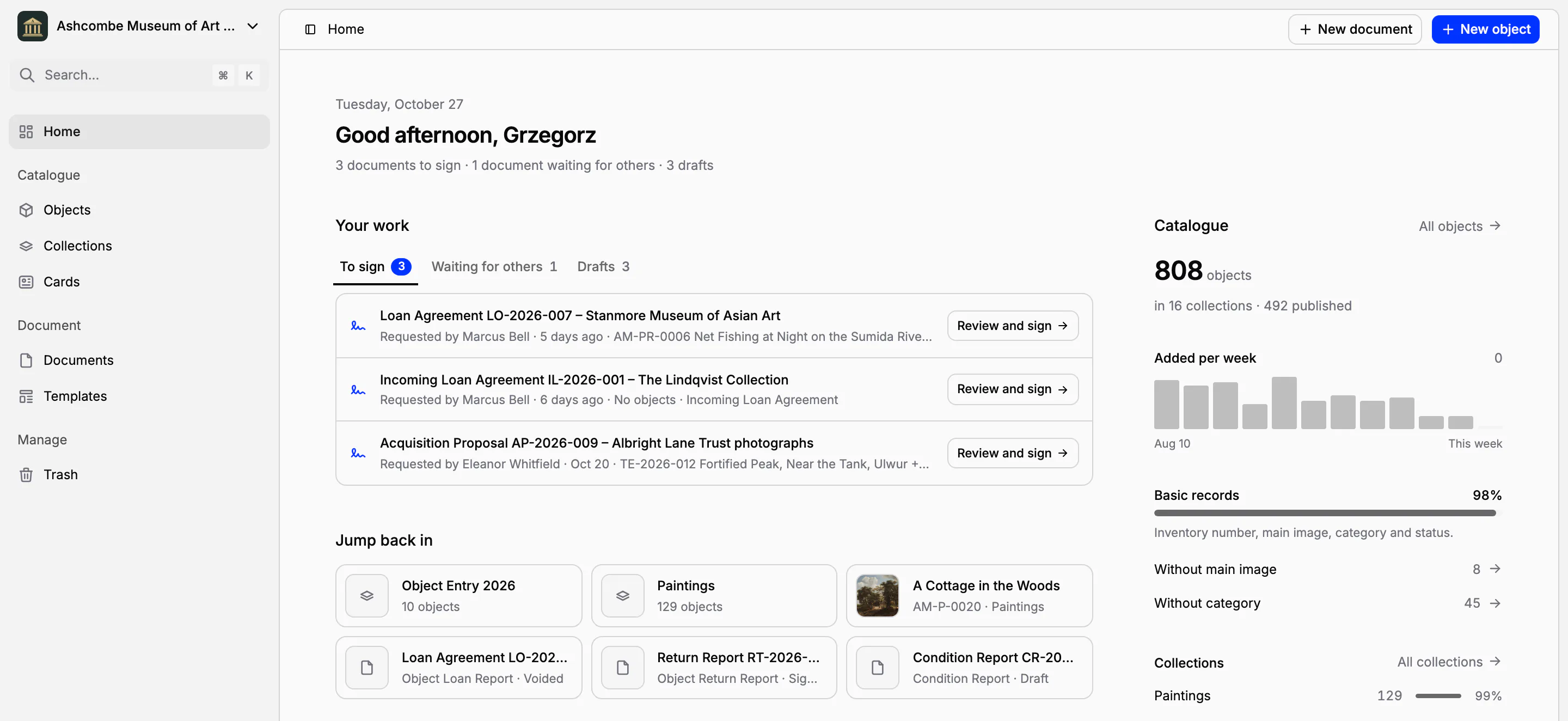
In many museums the state of the catalogue lives in someone's head, or in a spreadsheet updated once a year: how many objects still have no photograph, which loan agreement is waiting for a signature, who changed a record last week. Collectionframe answers these questions on its first screen. Every number is a link to the objects or documents behind it, so a count becomes a to-do list in one click.
What needs you today
Home opens with one line that sums up your day, for example 3 documents to sign · 1 document waiting for others · 3 drafts. Below it, Your work lists your documents in order of urgency:
To sign: documents someone asked you to sign, with who asked and when;
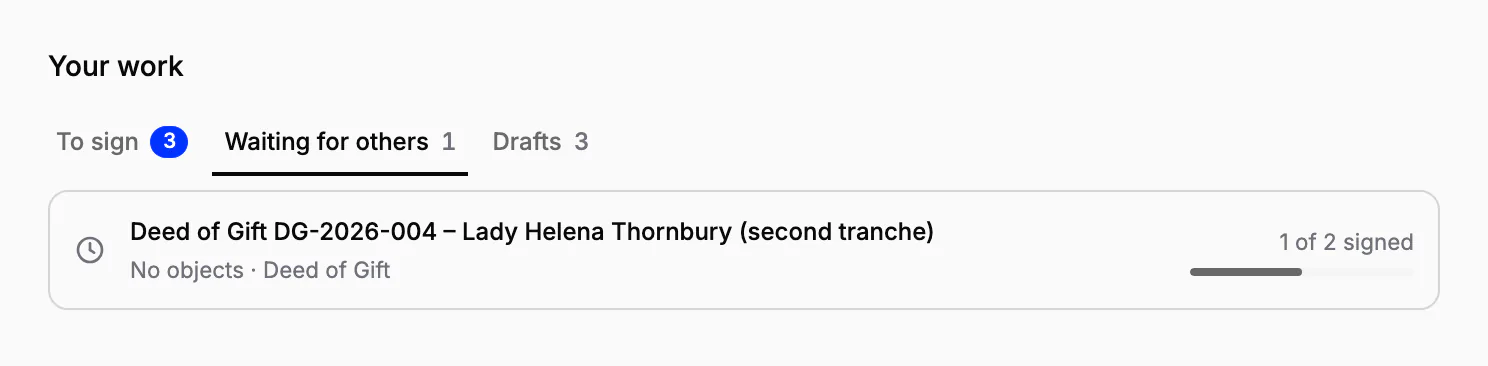
Waiting for others: documents you sent for signature, with how many people have signed so far;
Drafts: documents you are still writing.
Each row names the template and the objects the document concerns, inventory number first. When nothing waits for you, Home says so in one line. How a document travels from signer to signer is described under Electronic signatures.
Back where you left off
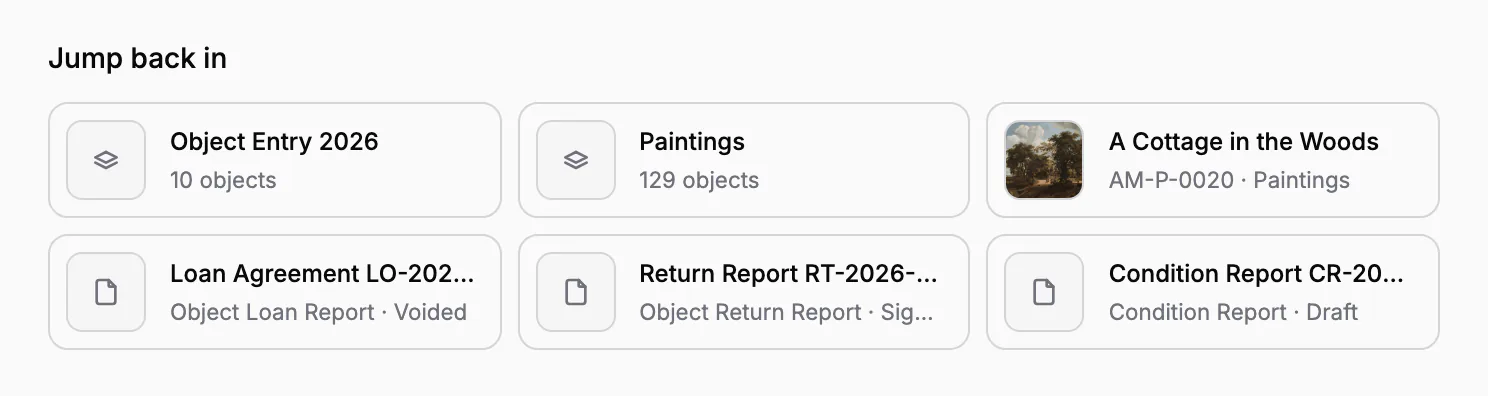
Jump back in keeps the objects, documents and collections you opened last one click away, each object with its main image. The list is kept for each museum you work in, and it leaves out records moved to the trash and records you can no longer open.
How complete the catalogue is
The column beside your work shows the catalogue as a whole: how many objects it holds, in how many collections, and how many are published. Added per week draws the objects added in each of the last twelve weeks. Basic records gives the share of the basic record that is filled in (inventory number, main image, category and status) and how many objects lack each part. Your largest collections follow, each with its object count and how complete its records are.
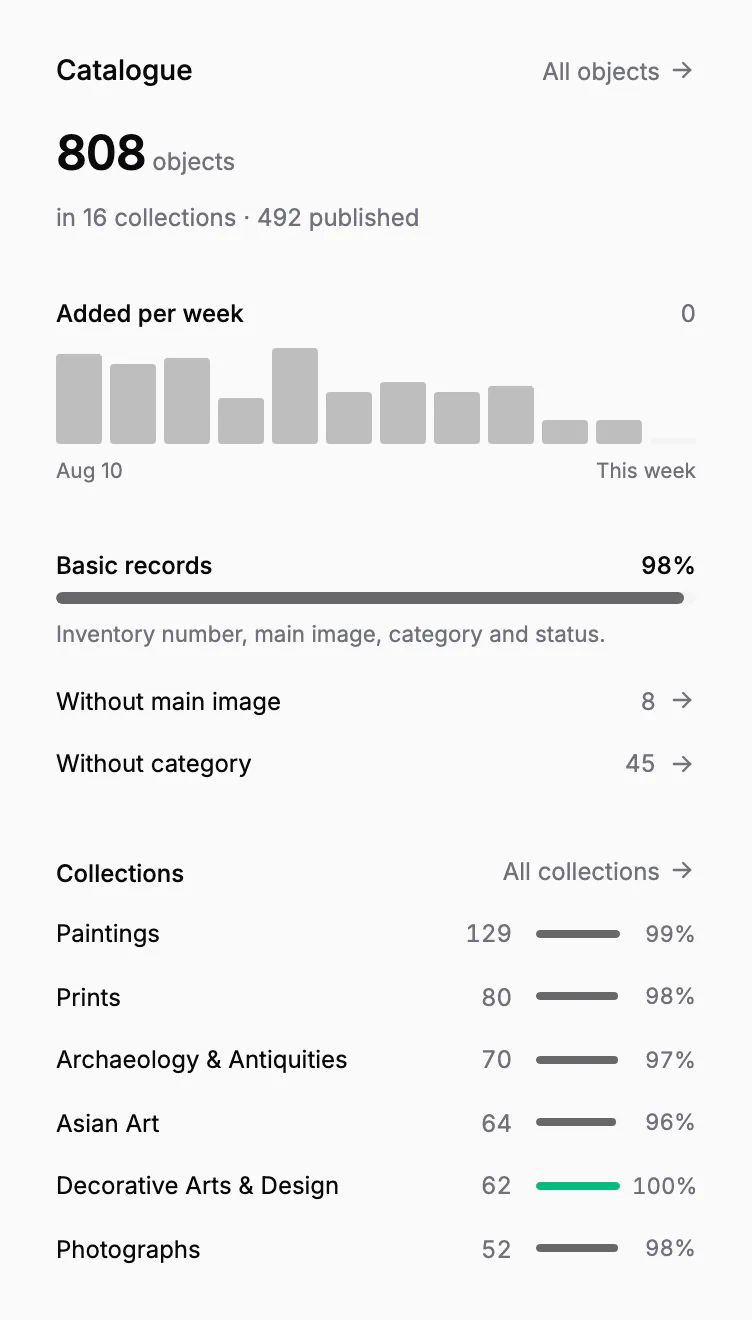
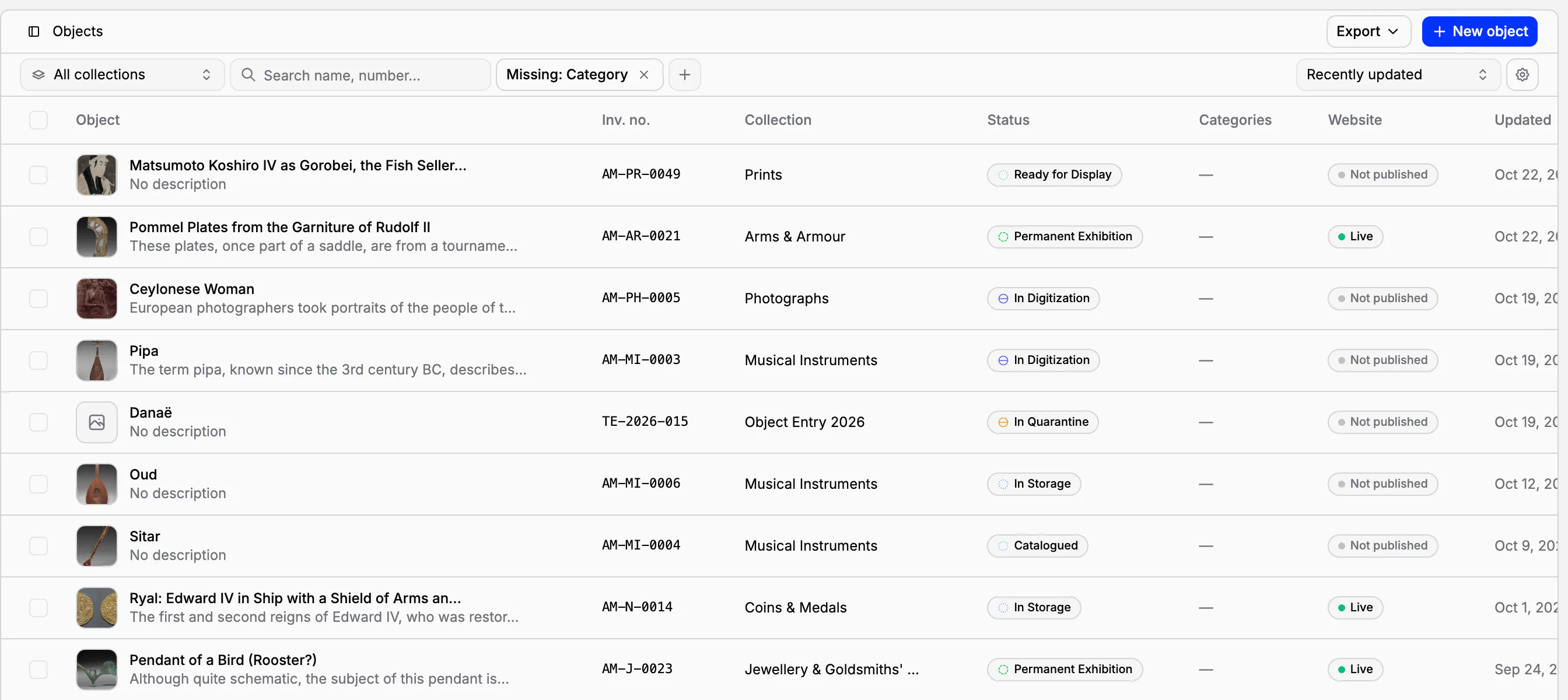
Every number is a link. Without category 45 opens the object list filtered to exactly those 45 objects. The filter lives in the page's address, so you can send the list to the colleague who will fix it, as described under Find any object.
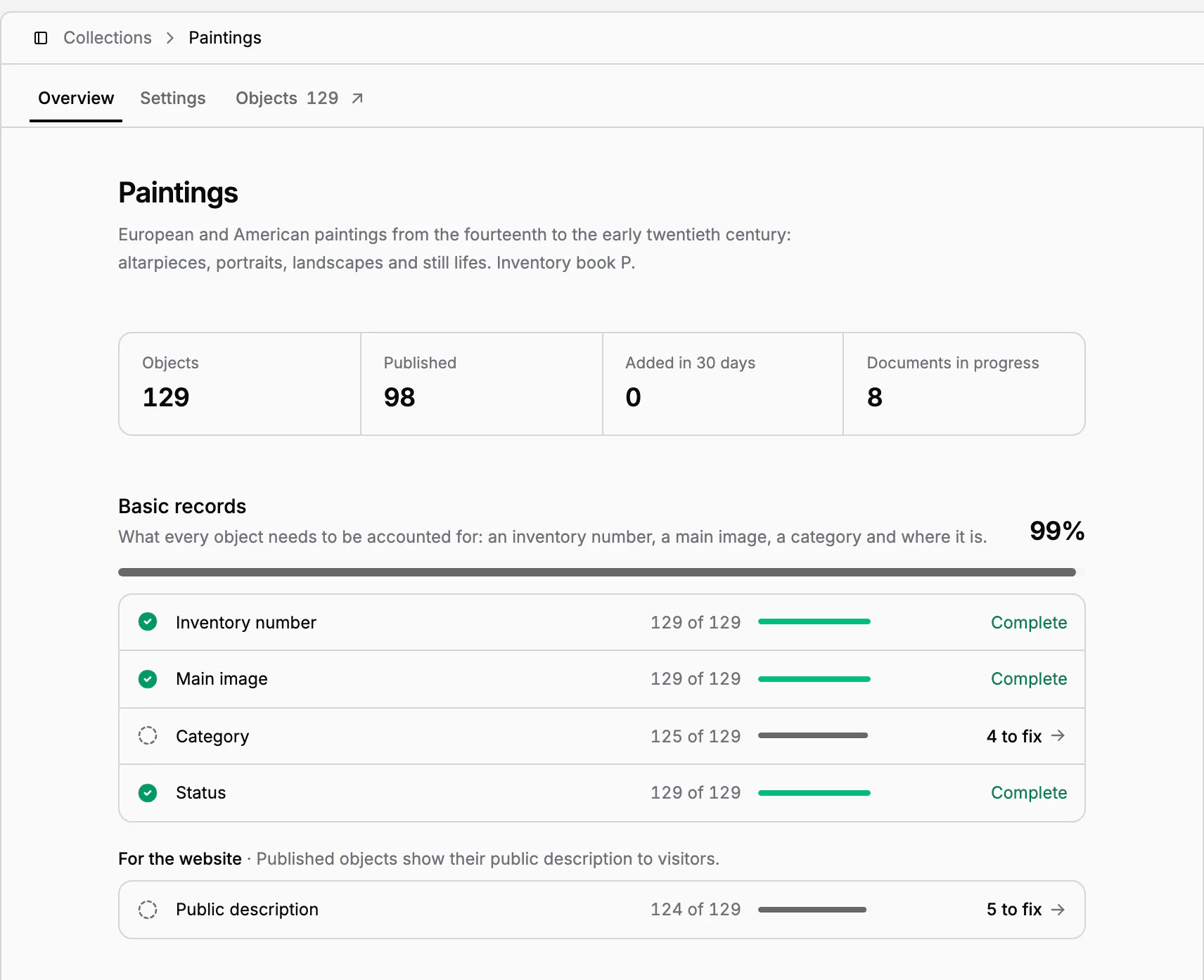
Each collection's overview
Each collection opens on its overview: objects, published objects, objects added in the last 30 days and documents in progress. Basic records lists the inventory number, main image, category and status, each with Complete or N to fix, and For the website counts the objects without a public description. N to fix opens exactly those objects.
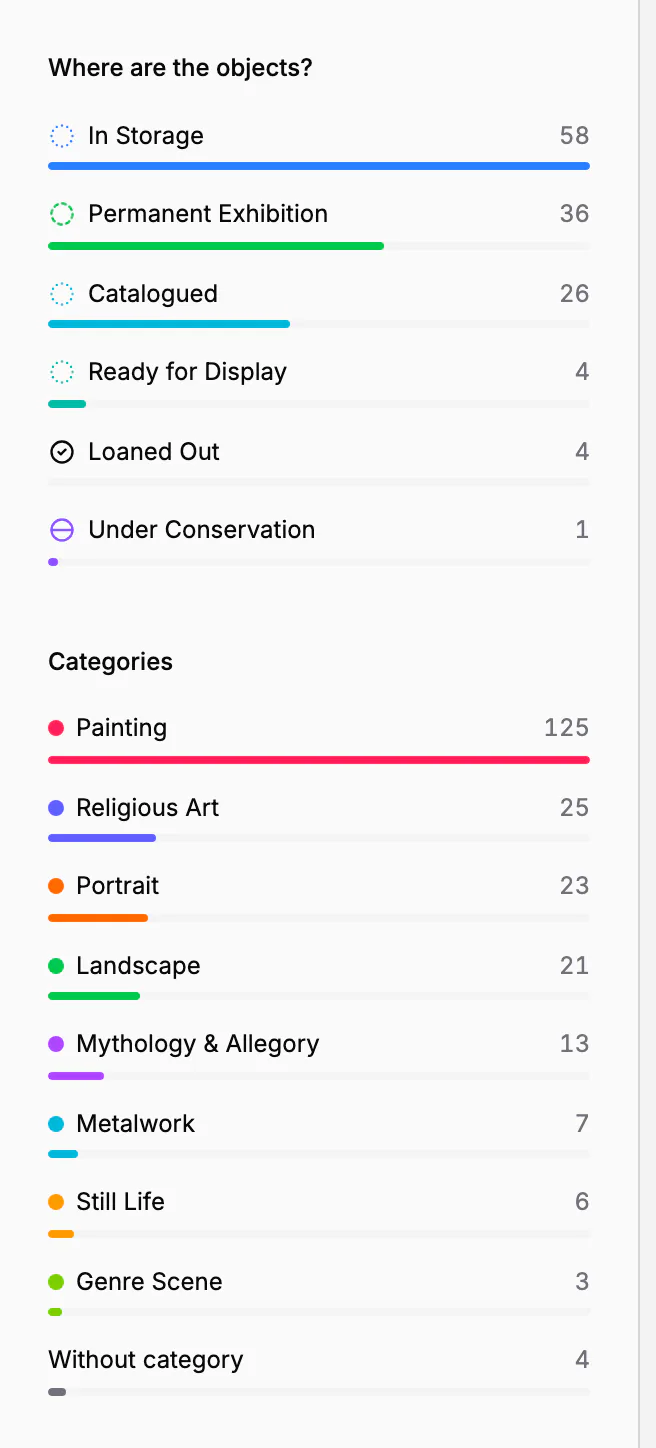
Below follow the latest objects, the documents that concern the collection, in progress and signed, and its activity. The side column shows the collection's properties, then where its objects are (one bar per status), how they are classified and how many were added each week. The table of all collections is described under All collections at a glance.
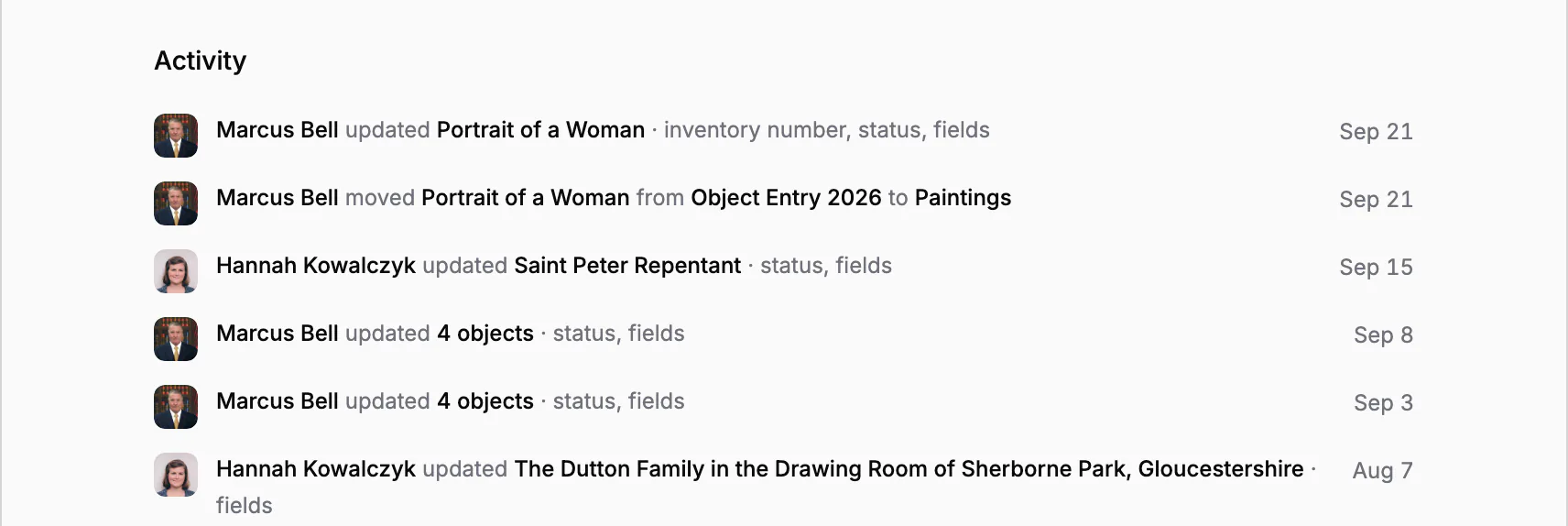
What changed, and who did it
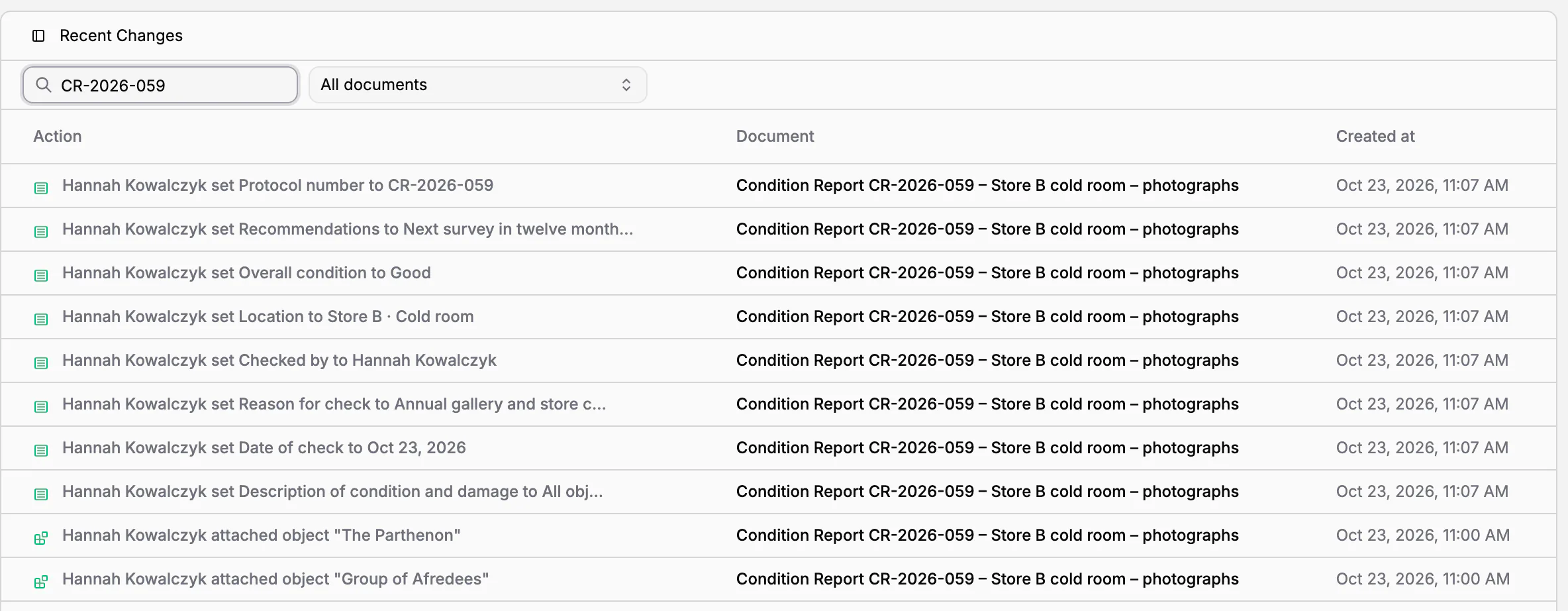
Home and each collection's overview keep one feed of the museum's work: objects added, updated, moved to another collection, published or moved to the trash, and changes to documents. It reads as sentences, such as Marcus Bell moved Portrait of a Woman from Object Entry 2026 to Paintings. Consecutive changes are grouped (updated 4 objects · status, fields), and every name opens the record or the list of objects concerned.
Recent Changes is the full history of documents: search it, page through it and open any document from the list. Each document also keeps its own activity, as described under Files, PDF, copies and history. The feed says who changed which part of a record and when; it does not keep the old and new values of a field. Everyone sees the activity only of the collections and folders their team and role give them.
Every page one shortcut away
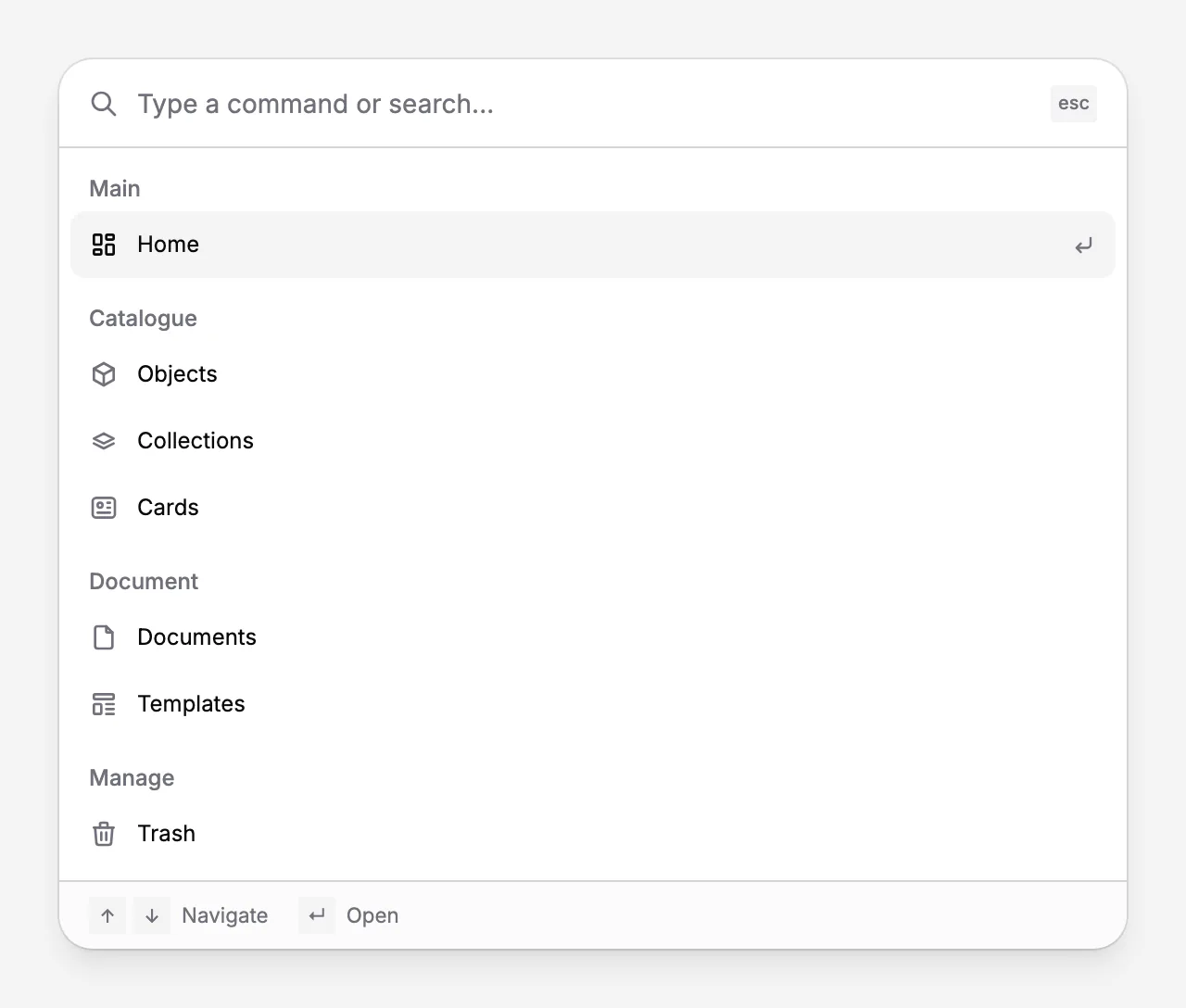
Press Ctrl+K, or ⌘K on a Mac, anywhere in the app and type where you want to go: objects, collections, cards, documents, templates, the trash or any page of the settings.
In practice
Monday morning, the registrar opens Collectionframe. The first line says that a loan agreement is waiting for her signature, and she signs it from To sign. The Paintings overview shows 37 to fix next to Main image. She opens the 37 objects, sends the link to the photographer, and during the week watches the number fall as the images arrive.
Frequently asked questions
Can I see who changed an object?
Yes. The activity says who changed which part of a record and when, for example its status, its fields or its collection. It does not keep the old and new values of each field.
Does everyone see everything?
No. Home and the activity show only what a person may open: someone without access to documents sees the catalogue and its activity, someone without access to the catalogue sees their documents, and teams limit both to their collections and folders.
Can I share a list of what is still missing?
Yes. Every number opens a filtered list of objects, such as those without a main image, and the filter is part of the page's address. Send the link to the colleague who will fix it.
How do I know how far a collection's documentation has come?
Open the collection's overview. Basic records shows how many objects have an inventory number, a main image, a category and a status, and N to fix opens the ones that do not.
Related features
Collections and inventory numbers
Departments and inventory books, each with its own numbering, fields, card and curator. Numbers are given in order, never repeated, and the register exports to a spreadsheet.
Cataloguing museum objects
One record per object: inventory number, images, fields that fit your collection, categories and status. Find any object in seconds, work on many at once, and take back mistakes from the trash.
Electronic signatures for loan agreements and handover reports
Send a loan agreement or a handover report for signature to colleagues and to people outside the museum. The text is frozen when signing begins, every signer confirms a code sent to their e-mail, and every step is kept in an audit trail.