
Cataloguing museum objects
One record per object: inventory number, images, fields that fit your collection, categories and status. Find any object in seconds, work on many at once, and take back mistakes from the trash.
Published
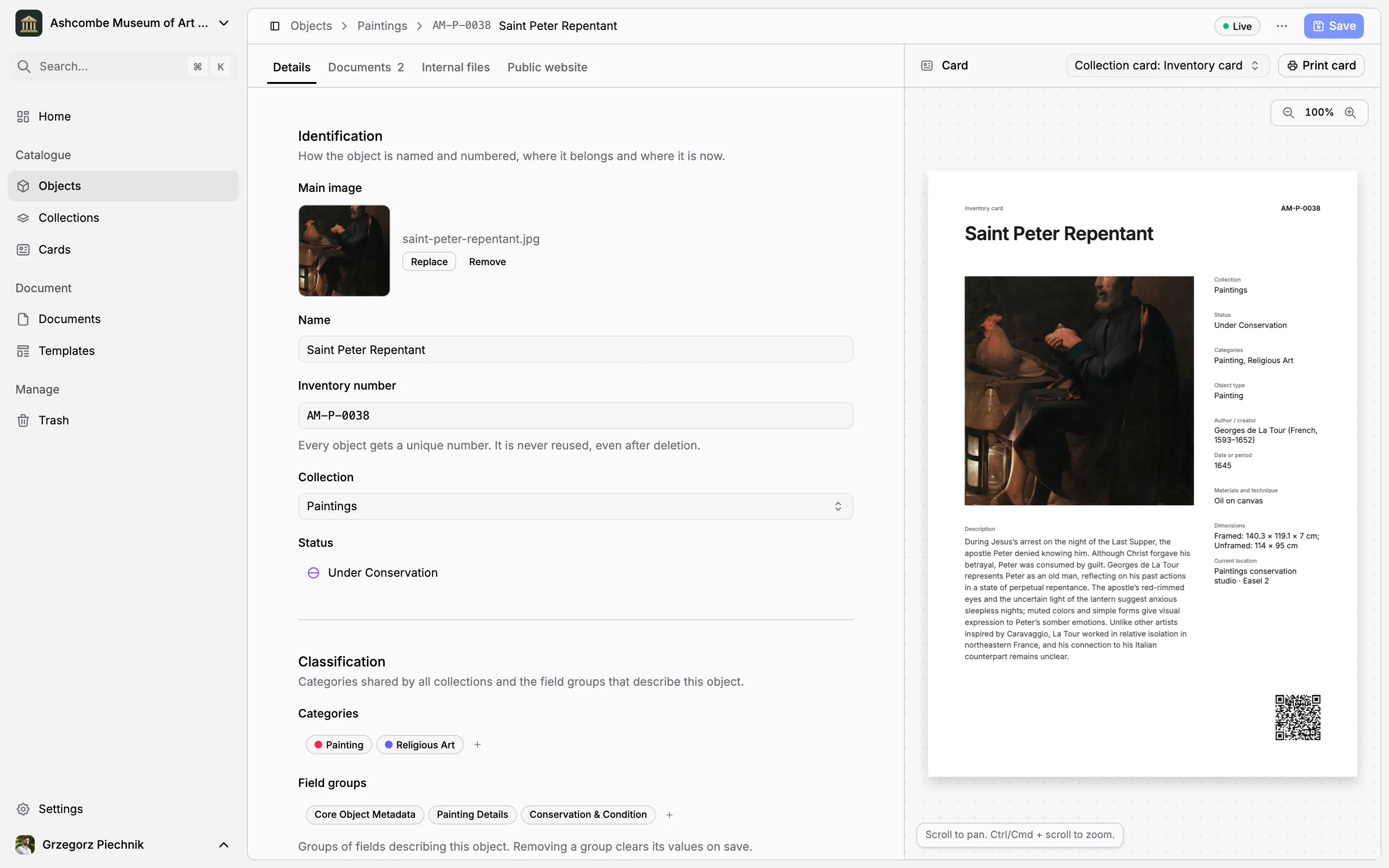
A catalogue kept in spreadsheets, card boxes and shared folders drifts apart: the same painting has three spellings of its title and two photographs, and nobody is sure which is current. In Collectionframe every object has one catalogue record, and everything else reads from it: its inventory card, its documents, exports and the public website. You type the data once, in one place, and you can find it again in seconds.
One record for every object
The record holds the object's inventory number, name and main image, its collection and status, its categories and the fields of its field groups. A new object starts with a name and a collection; the collection gives it the next inventory number, unique and never reused, and the fields it should have.
The record has four tabs. Details is the catalogue entry itself. Documents lists the receipts, loans and condition reports that concern the object. Internal files keeps working material, and Public website decides what visitors see. Beside the form, a live preview of the object's inventory card shows what will print.
Data is entered only here. Cards, documents, CSV exports and the website take it from the record, so a corrected date is corrected everywhere at once. When you catalogue a series of similar objects, Duplicate starts the next record from the one you have just finished.
Fields that fit your collection
What you record about objects is decided by field groups: sets of fields such as Painting details, Provenance and ownership or Conservation and condition. Every museum starts with ten ready groups, covering core metadata, painting, sculpture, photography, archaeology, decorative arts, provenance and ownership, acquisition and valuation, conservation and condition, and exhibition and loan. Rename them, change them or add your own.
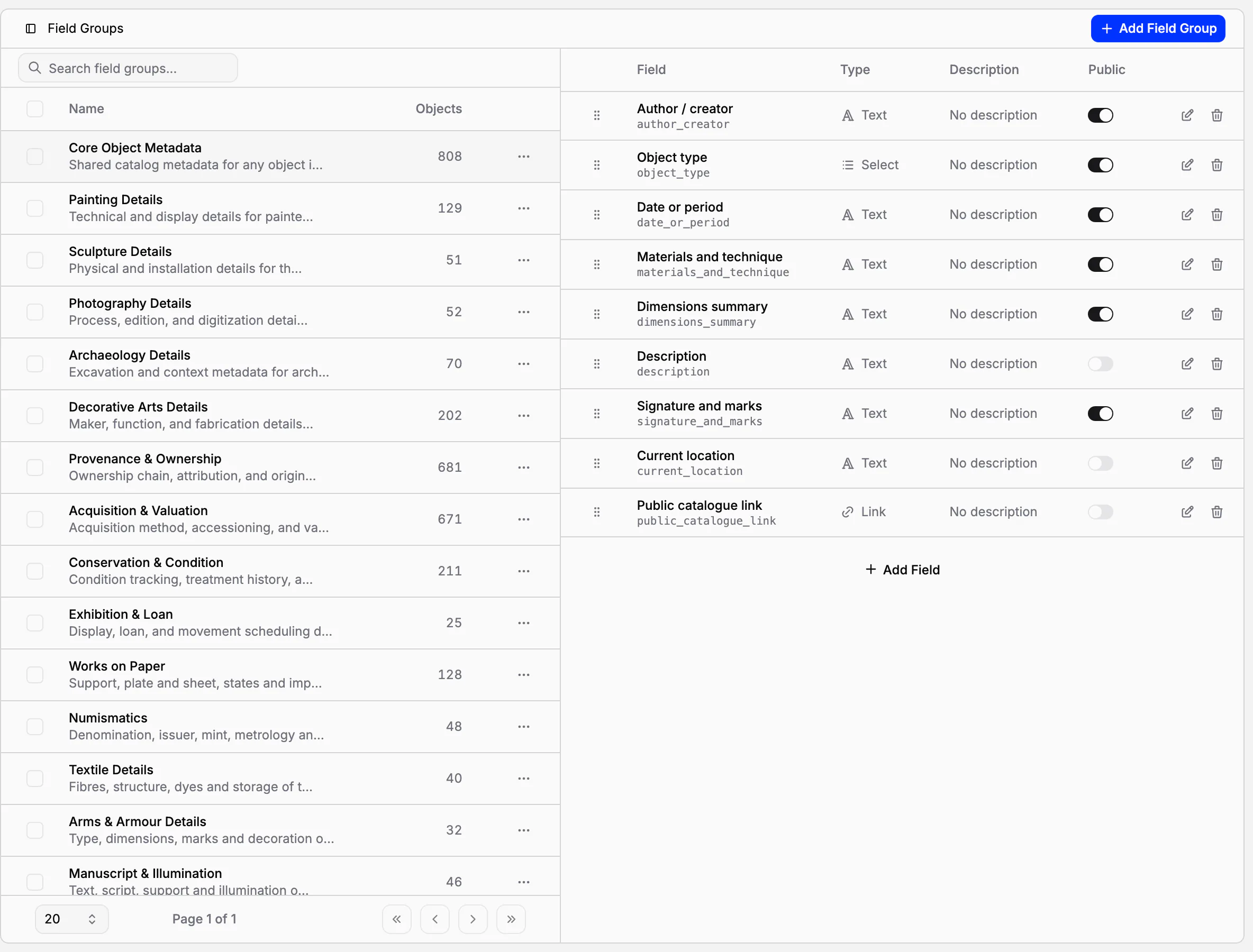
A field has one of ten types: text, number, yes/no, date, date and time, single choice, multiple choice, currency, link or image. It also has a permanent key, such as author_creator. Rename Author / creator to Maker and every card and export keeps working, because they follow the key, not the label.
A collection chooses the groups its new objects start with, so a new painting starts with painting fields and a new photograph with photography ones. Each object can still add a group it needs or remove one it does not; removing a group clears its values when the object is saved.
Categories say what it is, statuses say where it is
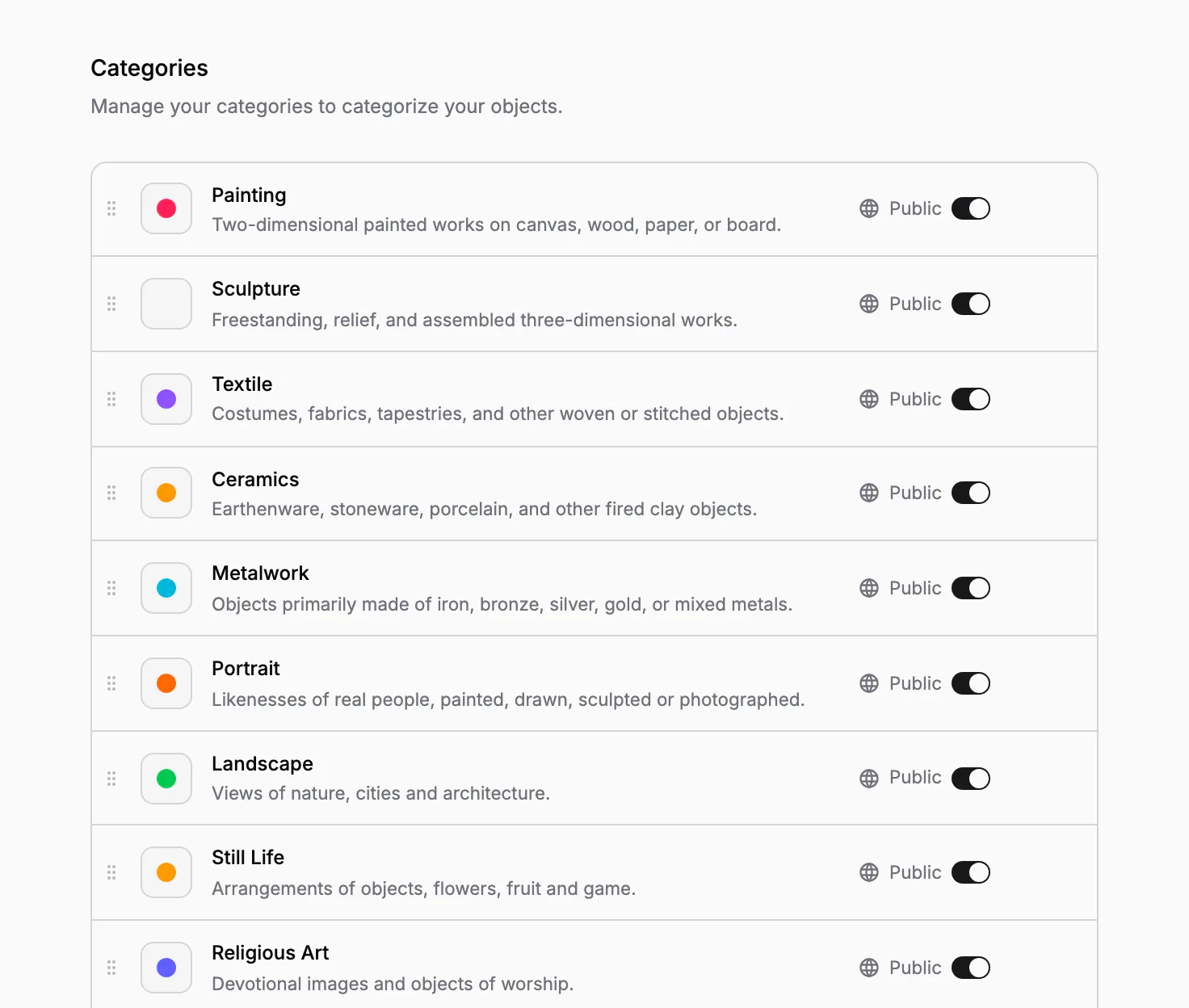
Categories classify objects across collections: Painting, Textile, Portrait, Religious art. They form one shared list, with a colour, a description and an order of your choice, so everyone uses the same words instead of inventing slightly different ones in each department. An object can have several categories.
A status says where the object is now. Every status belongs to one of four kinds: in storage, on display, temporarily unavailable, or offsite. Eleven ready statuses cover the usual situations, from Permanent exhibition to Under conservation, In quarantine and Loaned out. Add your own, such as a particular storage room or exhibition, and put the most used first.
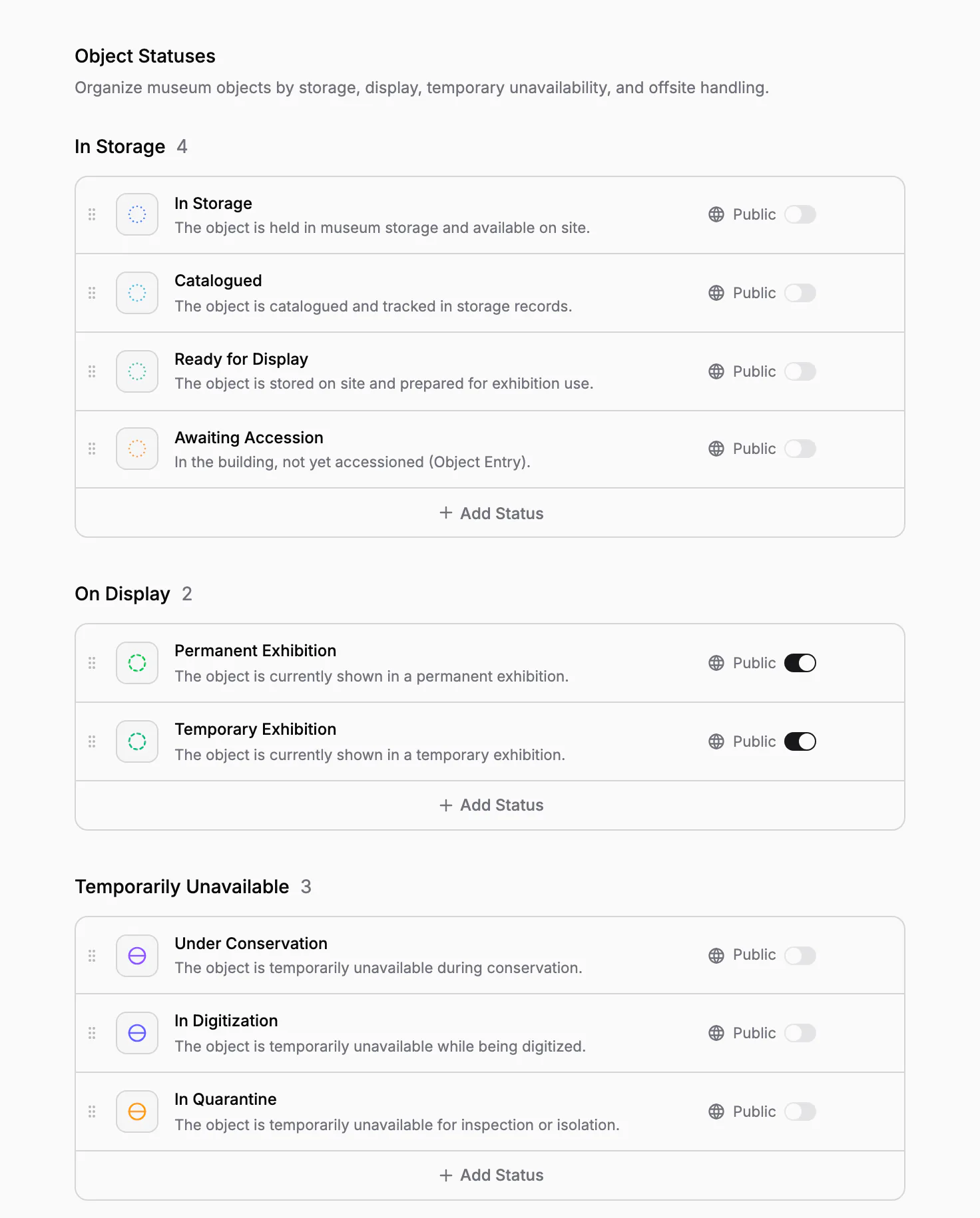
Statuses appear in the object list and on the record, and they filter the list: everything on display, everything offsite. A status that is still in use is never removed silently; Collectionframe first asks what should happen to the objects that have it.
Find any object, and what is still missing
Objects is one list of every object you can access, across all collections. Search by inventory number, name or description. Filter by collection, status, category, card, publication, inventory number or the value of any field. Inventory numbers sort the way people read them, so P-2 comes before P-10.
The Missing filters find the records that are not finished: objects without an inventory number, a main image, a category, a status or a public description.
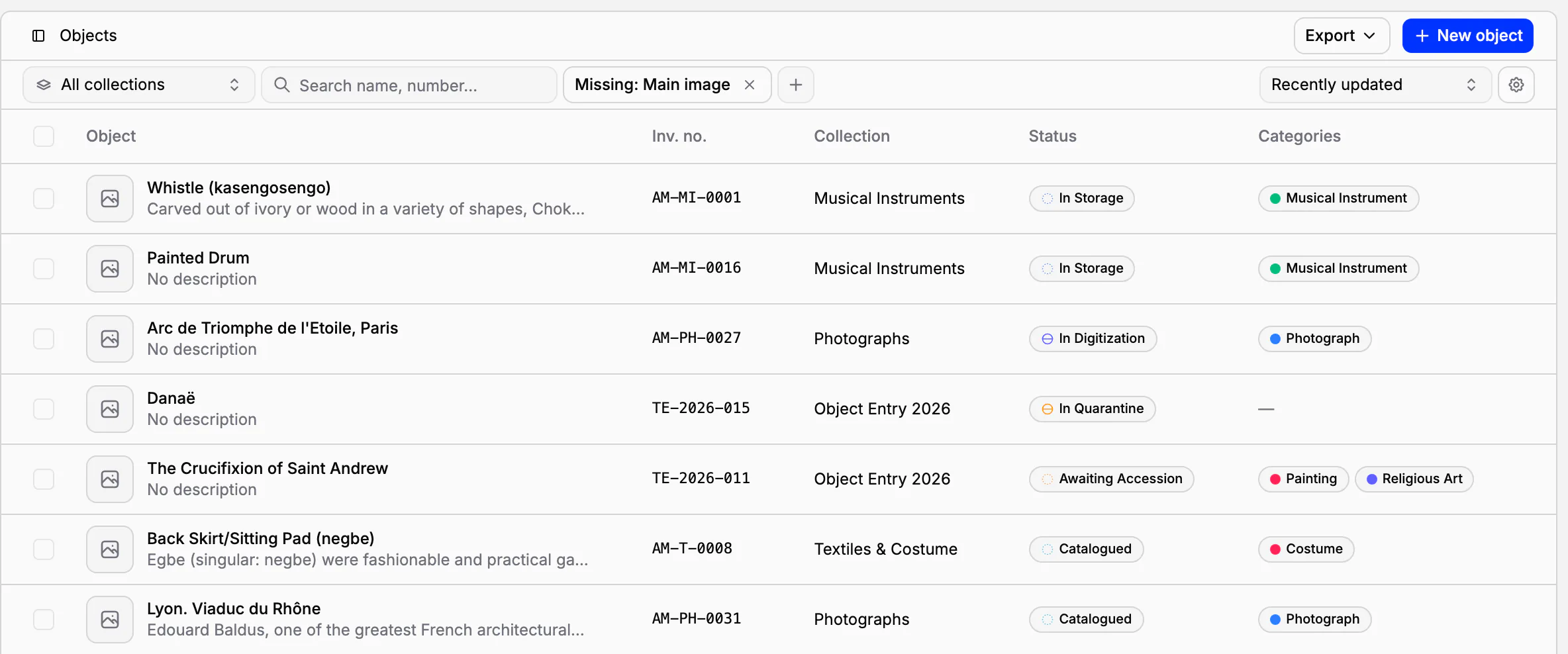
The list keeps what you are looking at in its address: the collection, the search, the filters, the sort and the page. Open an object, go back, and the same list is waiting. Copy the link to Paintings without a main image and a colleague opens exactly that list.
Work on many objects at once
Select objects in the list and act on all of them together. Publish or unpublish them, move them to another collection, set their status, print their cards, create one document that concerns all of them, or move them to the trash.
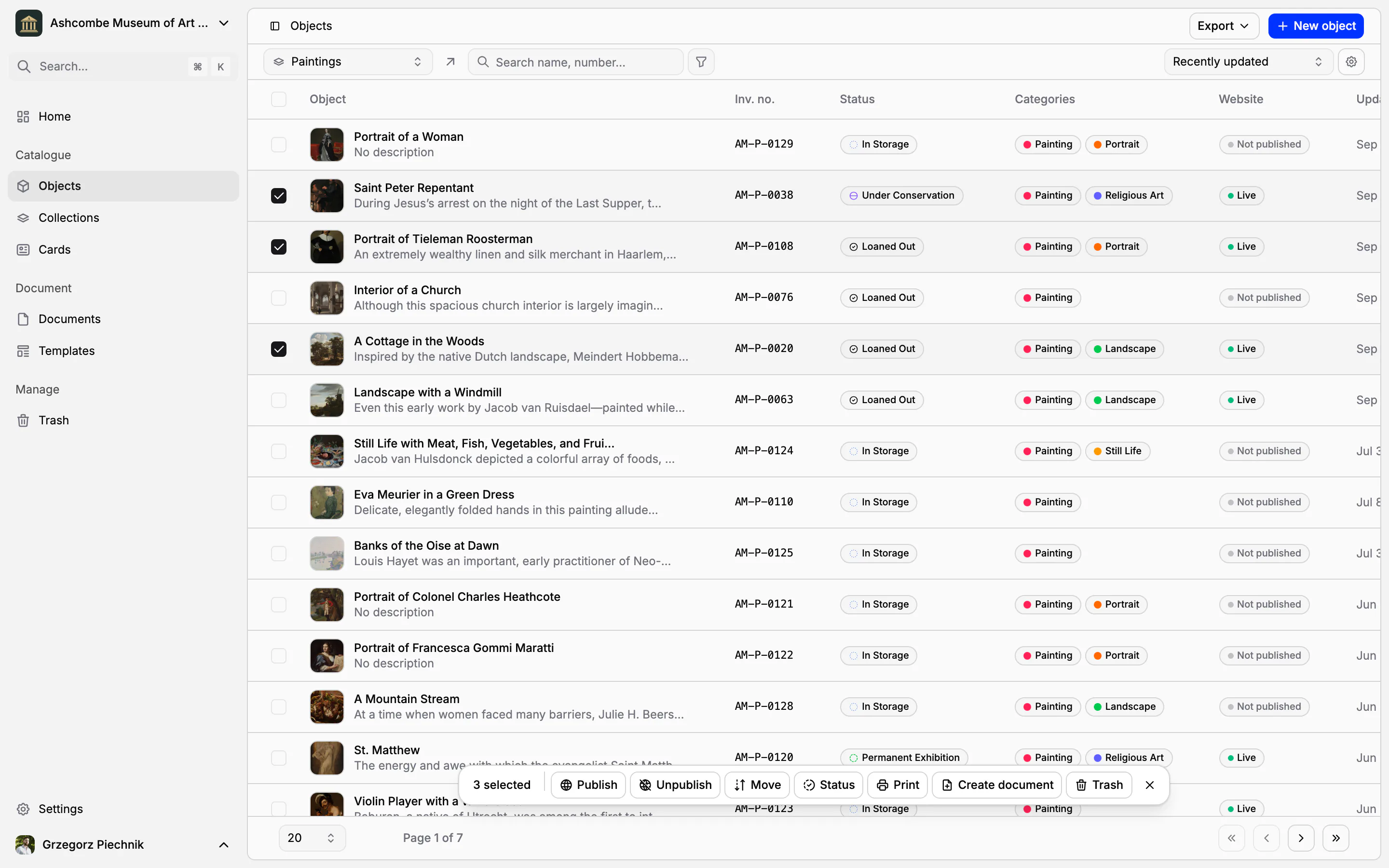
Objects moved to another collection keep their data, their inventory numbers and their links to documents.
Files that stay with the record
Every object has Internal files for working material: scans of old paper cards, letters about the acquisition, reference photographs, reports. Upload up to ten files at a time, preview them and download them. They are kept apart from the images and downloads that visitors see on your public website, so preparing a public page never exposes a working file.
The trash takes back mistakes
A deleted object goes to the trash with its field values, categories, files and links to documents. Restore one or many at once. If the object's collection was deleted in the meantime, you choose another collection to restore it into.
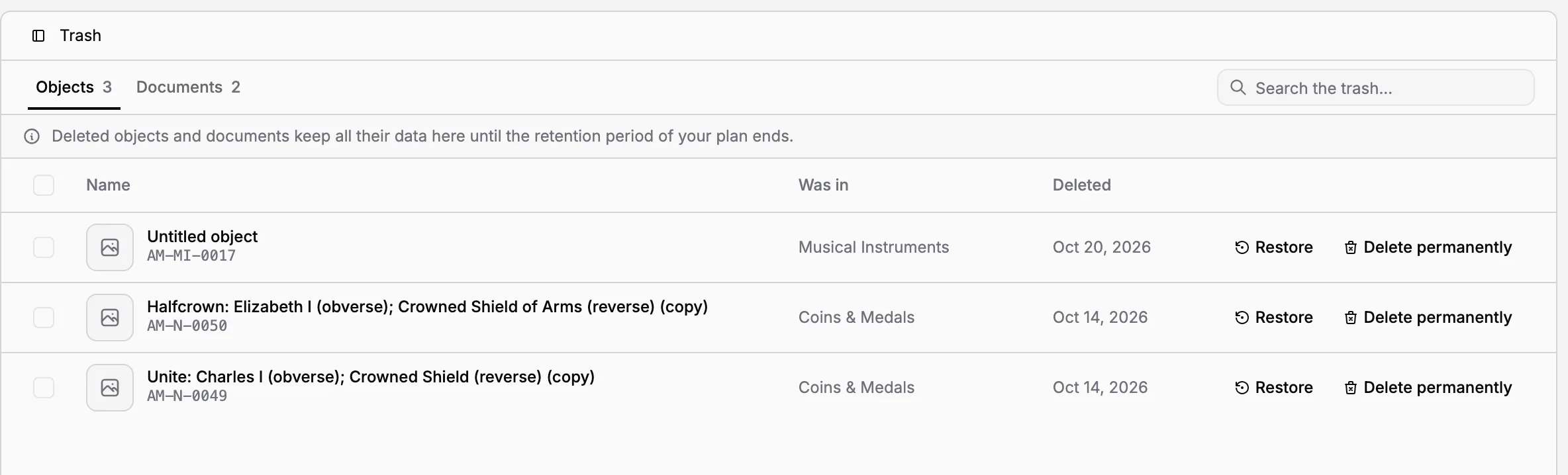
Restored objects come back unpublished, so nothing reappears on the website by surprise. Objects stay in the trash for 14 days on Pro and for 60 days on Scale. Deleted documents work the same way.
In practice
The photographer comes on Thursday to photograph the paintings that still have no picture. In Objects, choose the Paintings collection and the filter Missing: main image, and send the link to the photographer and to the registrar. As each photograph is added as a main image, the painting leaves the list and its inventory card shows the new picture. When the list is empty, the job is done, and nobody had to keep a separate checklist.
Frequently asked questions
Can we add our own fields?
Yes. Change the ready field groups or create your own, with fields of ten types, from text and dates to currency, links and images. Every field keeps a permanent key, so renaming it never breaks a card or an export.
Can an object be in two collections?
No. An object belongs to one collection, which gives it its inventory number and its rules. To group objects across collections, use categories: an object can have as many as it needs.
How do I find records that are not finished?
Filter the object list by what is missing: an inventory number, a main image, a category, a status or a public description. The filtered list has its own address, so you can bookmark it or send it to a colleague.
What happens when someone deletes an object?
It goes to the trash with its values, categories, files and links to documents, and can be restored for 14 days on Pro or 60 days on Scale. A restored object comes back unpublished.
Related features
Collections and inventory numbers
Departments and inventory books, each with its own numbering, fields, card and curator. Numbers are given in order, never repeated, and the register exports to a spreadsheet.
Inventory cards and museum labels
Design an inventory card, an exhibition label or a storage tag once; every object fills it with its own, current data. Print one, or a whole collection, as PDF, PNG or JPG.
Museum documentation: loan agreements, receipts and condition reports
Receipts, loan agreements, condition reports and movement records, linked to the objects they concern. Object data comes from the catalogue, every other value is typed once, and every object keeps its own paper trail.